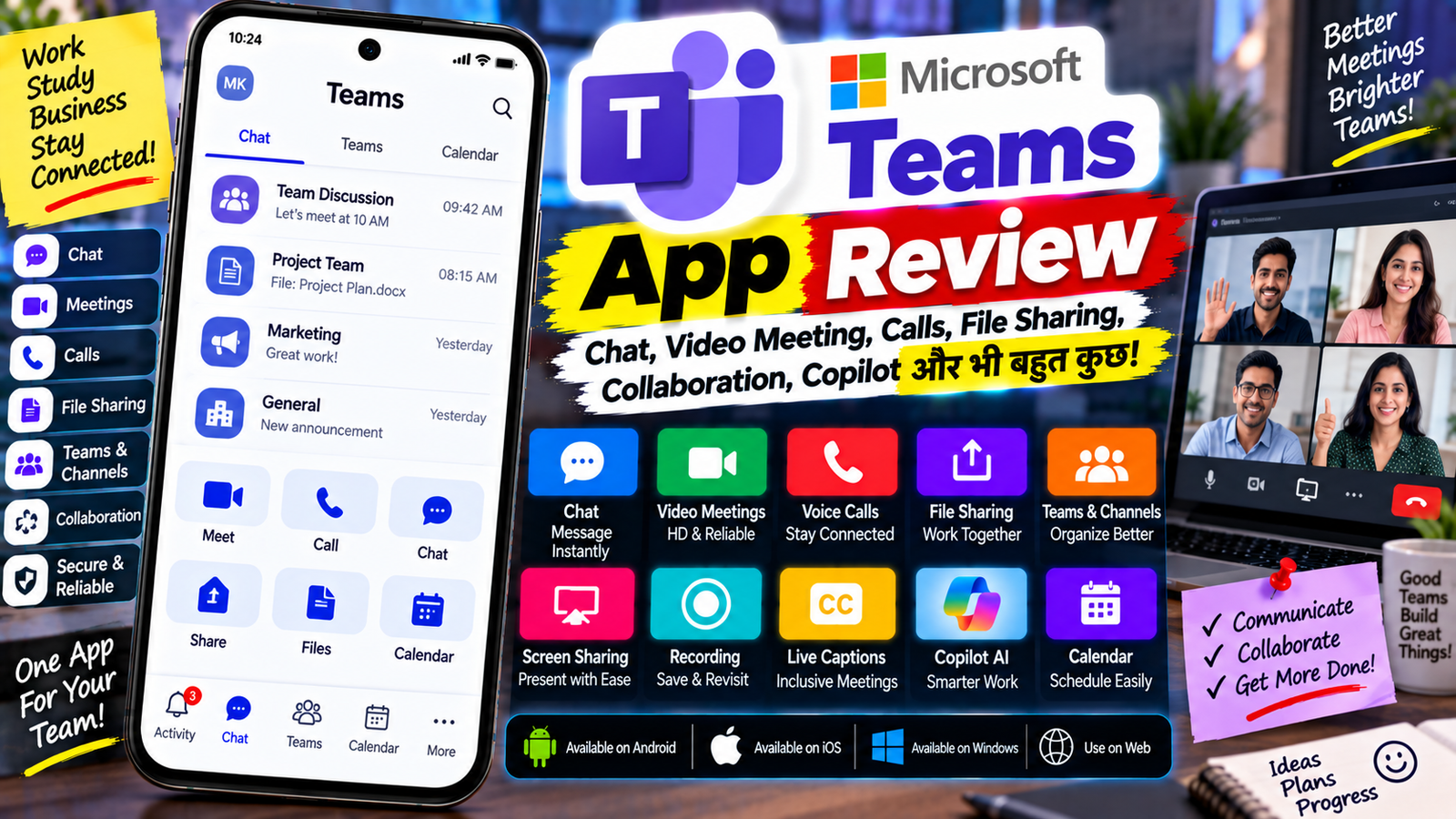
आज के समय में काम और communication के लिए केवल WhatsApp या Email काफी नहीं रह गया है। खासकर जब बात office meetings, online classes, team projects, client calls और remote work की आती है, तब एक ऐसा platform चाहिए जिसमें Chat, Video Meeting, Voice Call, File Sharing और Team Collaboration सब कुछ एक ही जगह मिल जाए।
इसी काम के लिए Microsoft का Microsoft Teams एक popular communication और collaboration platform है। Microsoft Teams में chat, meetings, calls, files और collaborative work को एक ही जगह manage किया जा सकता है।
Teams को आप smartphone, computer और web browser से इस्तेमाल कर सकते हैं। Microsoft की official website के अनुसार Teams का mobile app Android और iOS पर उपलब्ध है।
इस review में हम Microsoft Teams के मुख्य features, video meetings, chat, calls, screen sharing, file sharing, channels, collaboration, AI features, free version, फायदे, कमियां और privacy से जुड़ी जरूरी बातों को विस्तार से समझेंगे।
Microsoft Teams क्या है?
Microsoft Teams एक communication और collaboration platform है।
इसका इस्तेमाल मुख्य रूप से इन कामों के लिए किया जाता है:
- Team Chat
- Video Meetings
- Voice Calls
- File Sharing
- Screen Sharing
- Team Collaboration
- Online Classes
- Project Management
- Meetings और Discussions
Microsoft Teams को Microsoft एक ऐसे workspace के रूप में describe करता है जिसमें real-time communication, meetings, file sharing और collaboration एक ही जगह पर किया जा सकता है।
यानी अलग-अलग कामों के लिए कई applications खोलने की जरूरत कम हो सकती है।
Teams के मुख्य Features
1. Chat
Microsoft Teams का सबसे basic feature इसका Chat है।
आप किसी व्यक्ति के साथ one-to-one chat कर सकते हैं या group conversation शुरू कर सकते हैं।
Teams chat में:
- Text Messages
- Emojis
- GIFs
- Files
- Images
- Links
- Rich Text
- Replies
जैसी सुविधाएं उपलब्ध हैं। Microsoft के अनुसार Teams instant messaging में file sharing और threaded conversations जैसी सुविधाएं भी शामिल हैं।
यह office communication या project discussion के लिए उपयोगी हो सकता है।
2. Video Meetings
Teams का सबसे popular use case Video Meetings है।
आप online meeting schedule करके लोगों को invite कर सकते हैं।
Meeting में:
- Camera
- Microphone
- Chat
- Screen Sharing
- Presentation
- Participants
- Meeting Controls
जैसी सुविधाएं मिलती हैं।
Microsoft के अनुसार Teams meetings में PowerPoint Live और Microsoft Whiteboard जैसी सुविधाएं भी उपलब्ध हैं।
3. Voice Calling
अगर video की जरूरत नहीं है तो Teams से voice calls भी किए जा सकते हैं।
Microsoft Teams में calling features के अंतर्गत group calling, voicemail और call transfer जैसी सुविधाएं plan और configuration के अनुसार उपलब्ध हो सकती हैं।
Business users के लिए Teams Phone के जरिए Teams को business calling workflow के साथ भी इस्तेमाल किया जा सकता है।
4. Screen Sharing
Online meeting के दौरान आप अपनी screen दूसरे participants के साथ share कर सकते हैं।
उदाहरण के लिए:
- PowerPoint Presentation
- Excel Sheet
- Browser
- Software Demo
- Tutorial
- Project Design
दिखाने के लिए screen sharing काफी उपयोगी है।
यह feature online teaching और client presentations में भी इस्तेमाल किया जा सकता है।
5. Meeting Chat
Meeting के दौरान participants chat में messages भेज सकते हैं।
अगर कोई व्यक्ति बोलकर interruption नहीं करना चाहता तो वह chat के जरिए question या information share कर सकता है।
इससे meeting के दौरान discussion को organize रखना आसान हो सकता है।
6. Meeting Recording
Supported Teams plans में meetings को record करने की सुविधा भी उपलब्ध है।
Microsoft के अनुसार Teams meetings को record करके बाद में उन लोगों के साथ share किया जा सकता है जो meeting में उपस्थित नहीं थे।
Meeting recording का उपयोग:
- Training
- Classes
- Business Meetings
- Presentations
- Interviews
- Tutorials
जैसे कामों में किया जा सकता है।
हालांकि recording availability account type, meeting policy और organization settings पर निर्भर कर सकती है।
7. Live Captions
Meetings के दौरान Live Captions उपलब्ध हो सकते हैं।
इससे बोलकर कही जा रही बातों को text के रूप में follow करना आसान हो जाता है।
Microsoft Teams के paid plans में live captions और meeting transcripts जैसी सुविधाएं plan के अनुसार उपलब्ध हो सकती हैं।
8. Teams और Channels
Business या organization में Teams को केवल chat app की तरह इस्तेमाल करने के बजाय पूरा workspace बनाया जा सकता है।
एक Team के अंदर अलग-अलग Channels बनाए जा सकते हैं।
उदाहरण:
YouTube Project Team
Channels:
- General
- Content
- Editing
- Design
- Marketing
इससे अलग-अलग topics की conversations और files को अलग रखा जा सकता है।
9. File Sharing
Microsoft Teams में chat, meetings और channels के अंदर files share की जा सकती हैं।
आप:
- Word Documents
- Excel Files
- PowerPoint
- Images
- Other Files
share कर सकते हैं।
Microsoft के अनुसार Teams में files को upload, share और collaborative editing के लिए इस्तेमाल किया जा सकता है। OneDrive और SharePoint के साथ integration भी उपलब्ध है।
10. Real-Time Collaboration
Teams की खास बात यह है कि communication के साथ collaboration भी किया जा सकता है।
उदाहरण के लिए team members shared document पर मिलकर काम कर सकते हैं।
Microsoft Teams में Word, Excel और PowerPoint जैसी Microsoft applications के साथ integration होने के कारण documents पर collaborative work किया जा सकता है।
11. Polls
Meeting या chat में decision लेने के लिए polls बनाए जा सकते हैं।
उदाहरण:
अगली meeting कब रखें?
- Monday
- Tuesday
- Wednesday
Participants vote कर सकते हैं और result देखकर decision लेना आसान हो सकता है।
Microsoft के free Teams offering में भी tasks और polling जैसी collaborative सुविधाओं का उल्लेख है।
12. Shared Tasks
Teams में collaborative planning के दौरान tasks और shared to-do lists का इस्तेमाल किया जा सकता है।
उदाहरण:
Video Project
- Script — Person A
- Editing — Person B
- Thumbnail — Person C
- Upload — Person A
इस तरह team के काम को organize करना आसान हो सकता है।
Microsoft Teams में Meeting कैसे बनाएं?
Teams में meeting schedule करना काफी आसान है।
Step 1: Teams Open करें
अपने phone या computer में Microsoft Teams खोलें।
Step 2: Calendar पर जाएं
Teams के Calendar section में जाएं।
Step 3: New Meeting चुनें
अब नई meeting create करें।
Step 4: Details Add करें
Meeting में:
- Title
- Date
- Time
- Participants
- Description
जैसी जानकारी add करें।
Step 5: Invite भेजें
अब participants को invitation भेज दें।
Microsoft के अनुसार Teams meeting में external guests को भी invite किया जा सकता है और valid email address वाला व्यक्ति web browser के जरिए join कर सकता है।
Teams Meeting में Screen कैसे Share करें?
Meeting join करने के बाद Share option चुनें।
इसके बाद supported device पर आप:
- Screen
- Window
- Presentation
- Other content
share कर सकते हैं।
Presentation के लिए Teams में PowerPoint Live भी उपलब्ध है।
Microsoft Whiteboard
Teams meetings में Microsoft Whiteboard का इस्तेमाल collaborative brainstorming के लिए किया जा सकता है।
इसमें participants ideas लिख या draw कर सकते हैं।
Microsoft के अनुसार Teams meetings में Whiteboard का इस्तेमाल creative collaboration और visual ideas के लिए किया जा सकता है।
यह feature खासकर:
- Brainstorming
- Teaching
- Planning
- Design Discussion
में उपयोगी हो सकता है।
Teams में File Share कैसे करें?
Chat या channel खोलें।
फिर attachment/file option से document select करें।
आप supported files को upload करके दूसरे users के साथ share कर सकते हैं।
Microsoft के अनुसार Teams में files को chats, channels और meetings में link या direct upload के जरिए share किया जा सकता है।
Teams Mobile App
Microsoft Teams का mobile app Android और iOS devices के लिए उपलब्ध है।
Mobile app से आप:
- Chat
- Meetings
- Calls
- Files
- Notifications
- Calendar
- Collaboration
जैसी सुविधाओं को चलते-फिरते access कर सकते हैं।
Microsoft Teams mobile app में कई नए features भी लगातार जोड़े जा रहे हैं। Microsoft के 2026 updates में mobile chat catch-up, faster file previews, speed dial और meeting security features जैसे updates शामिल हैं।
AI और Copilot Features
Microsoft Teams में AI features भी तेजी से बढ़ रहे हैं।
Supported Microsoft 365 plans और configurations में Copilot Teams meetings और collaboration के दौरान information समझने और productivity tasks में मदद कर सकता है।
Microsoft Teams के enterprise offering में Microsoft 365 Copilot add-on उपलब्ध है।
AI features का इस्तेमाल meeting summaries, information खोजने और collaboration workflow को बेहतर organize करने जैसे कामों में किया जा सकता है।
हालांकि सभी AI features हर Teams user के लिए समान रूप से उपलब्ध नहीं होते। Availability account, license, organization settings और feature rollout पर निर्भर कर सकती है।
Meeting Recaps
Teams में meetings के बाद Meeting Recaps के जरिए past meetings की information को review करने की सुविधाएं उपलब्ध हैं।
Microsoft के 2026 updates के अनुसार Meeting Recaps app में past meetings को एक जगह review करने और अलग-अलग recap styles के जरिए information देखने की सुविधा जोड़ी गई है।
यह उन लोगों के लिए उपयोगी हो सकता है जो कई meetings attend करते हैं और बाद में जरूरी information वापस देखना चाहते हैं।
Microsoft Teams Free Version
Microsoft Teams का free version भी उपलब्ध है।
Microsoft की current India website के अनुसार free version में:
- Group meetings
- Up to 100 participants per meeting
- Up to 60 minutes
- 5 GB cloud storage
- Chat
- File sharing
- Tasks
- Polling
- Data encryption
जैसी सुविधाएं शामिल हैं।
Free plan की exact limits और features समय के साथ बदल सकते हैं, इसलिए subscription लेने से पहले Microsoft की current plan details देखना बेहतर है।
Microsoft Teams Paid Plans
Business और professional users के लिए Microsoft Teams के अलग-अलग paid plans उपलब्ध हैं।
उदाहरण के लिए Teams Essentials में Microsoft के अनुसार meetings, chat, file sharing, tasks, polling, meeting recordings, transcripts और live captions जैसी सुविधाएं शामिल हो सकती हैं।
Enterprise-level plans में larger meetings, additional security, administration और advanced collaboration capabilities उपलब्ध हो सकती हैं।
इसलिए plan चुनते समय users की संख्या, meeting duration, storage और required features को ध्यान में रखना चाहिए।
Microsoft Teams के फायदे
एक ही जगह पर कई काम
Chat, meeting, calls और files के लिए अलग-अलग applications की जरूरत कम हो सकती है।
Video Meetings
Online meetings और presentations के लिए कई useful features मिलते हैं।
File Collaboration
Teams में files share करके उन पर collaborative work किया जा सकता है।
Microsoft 365 Integration
Word, Excel, PowerPoint, OneDrive, SharePoint और अन्य Microsoft services के साथ integration Teams को Microsoft ecosystem में useful बनाता है।
Mobile Support
Android और iOS पर Teams उपलब्ध है।
Free Version
Basic communication और meetings के लिए free version भी available है।
लगातार Updates
Microsoft Teams में लगातार नए features और improvements जोड़े जा रहे हैं।
Microsoft Teams की कमियां
Beginners के लिए Interface Complex लग सकता है
Teams में बहुत सारे sections और features होने के कारण नए users को शुरुआत में interface थोड़ा confusing लग सकता है।
Advanced Features Paid हो सकते हैं
कुछ professional, AI और enterprise features के लिए paid license या specific Microsoft 365 subscription की आवश्यकता हो सकती है।
Internet पर निर्भरता
Video meetings, cloud files और real-time collaboration के लिए stable internet connection जरूरी होता है।
Organization Settings
अगर Teams को किसी company या school account के साथ इस्तेमाल किया जा रहा है तो कई features administrator policies से controlled हो सकते हैं।
Microsoft Teams किसके लिए Useful है?
Microsoft Teams इन users के लिए उपयोगी हो सकता है:
- Office Employees
- Remote Workers
- Businesses
- Students
- Teachers
- Freelancers
- Project Teams
- Client Communication
- Online Classes
- Content Teams
- Organizations
अगर आपको केवल personal chatting करनी है तो कई simpler messaging apps available हैं।
लेकिन अगर आपको chat + meetings + calls + files + collaboration एक ही जगह चाहिए, तो Teams का पूरा workflow ज्यादा relevant हो सकता है।
Microsoft Teams और Zoom में अंतर
Microsoft Teams communication के साथ collaboration और Microsoft 365 integration पर काफी focus करता है।
Zoom मुख्य रूप से video meetings और online communication के लिए जाना जाता है।
Teams में Microsoft ecosystem के साथ:
- OneDrive
- SharePoint
- Word
- Excel
- PowerPoint
- Outlook
जैसी services का integration मिलता है।
इसलिए कौन-सा platform उपयोगी रहेगा, यह आपके existing workflow और required features पर निर्भर करता है।
Microsoft Teams और Google Meet में अंतर
Google Meet Google Workspace ecosystem के साथ integrated video meeting service है।
Microsoft Teams video meetings के अलावा chat, channels, files और broader team collaboration features भी देता है।
अगर कोई organization पहले से Microsoft 365 इस्तेमाल करती है तो Teams का integration workflow में naturally fit हो सकता है।
Privacy और Security
Microsoft Teams में meetings, chats, calls और files के लिए security और encryption features उपलब्ध हैं। Microsoft के free Teams offering में भी data encryption का उल्लेख है।
फिर भी users को meeting links और shared files को सावधानी से manage करना चाहिए।
महत्वपूर्ण information share करते समय यह check करना जरूरी है कि file या meeting किस-किस व्यक्ति के लिए accessible है।
Microsoft Teams में file access permissions को control करने की सुविधाएं भी उपलब्ध हैं।
FAQs
Microsoft Teams क्या है?
Microsoft Teams एक communication और collaboration platform है जिसमें chat, meetings, calls, file sharing और teamwork features मिलते हैं।
क्या Microsoft Teams Free है?
हाँ, Microsoft Teams का free version उपलब्ध है। इसमें meetings, chat, file sharing और polling जैसी सुविधाएं मिलती हैं।
Teams में कितने लोग meeting में join कर सकते हैं?
Free version में Microsoft वर्तमान में up to 100 participants और 60-minute group meetings बताता है। Paid plans में limits अलग हो सकती हैं।
क्या Teams Android पर चलता है?
हाँ, Microsoft Teams का mobile app Android और iOS पर उपलब्ध है।
क्या Teams में screen sharing है?
हाँ, Teams meetings में screen और अन्य content share किया जा सकता है।
क्या Teams में meeting record कर सकते हैं?
Supported plans और organization settings में Teams meetings को record किया जा सकता है।
क्या Teams में files share कर सकते हैं?
हाँ, chats, channels और meetings के जरिए files share की जा सकती हैं।
क्या Microsoft Teams में Copilot है?
हाँ, supported Microsoft 365 licenses और configurations में Copilot Teams के साथ उपलब्ध है। इसकी availability plan और account पर निर्भर करती है।
क्या Teams में live captions हैं?
हाँ, कुछ Teams plans में live captions उपलब्ध हैं। Exact availability plan और language support पर निर्भर करती है।
क्या Teams में chat और video call दोनों कर सकते हैं?
हाँ। Microsoft Teams में chat, video meetings और calls सभी एक ही platform पर उपलब्ध हैं।
निष्कर्ष
Microsoft Teams एक complete communication और collaboration platform है जो केवल video calling तक सीमित नहीं है।
इसमें Chat, Video Meetings, Voice Calls, Screen Sharing, File Sharing, Channels, Tasks, Polls, Whiteboard और Microsoft 365 integration जैसी कई सुविधाएं मिलती हैं।
Microsoft ecosystem इस्तेमाल करने वाले businesses और teams के लिए इसका सबसे बड़ा फायदा यह है कि communication और productivity tools को एक ही workflow में जोड़ा जा सकता है।
Free version में भी basic meetings, chat और collaboration features उपलब्ध हैं, जबकि business और enterprise plans में ज्यादा participants, longer meetings, recordings, transcripts, advanced security और additional features मिल सकते हैं।
हालांकि इतने सारे features होने के कारण beginners को शुरुआत में Teams थोड़ा complex लग सकता है।
अगर आपको एक ही जगह पर team chat, online meeting, calling, file sharing और collaboration चाहिए, तो Microsoft Teams एक feature-rich solution है।