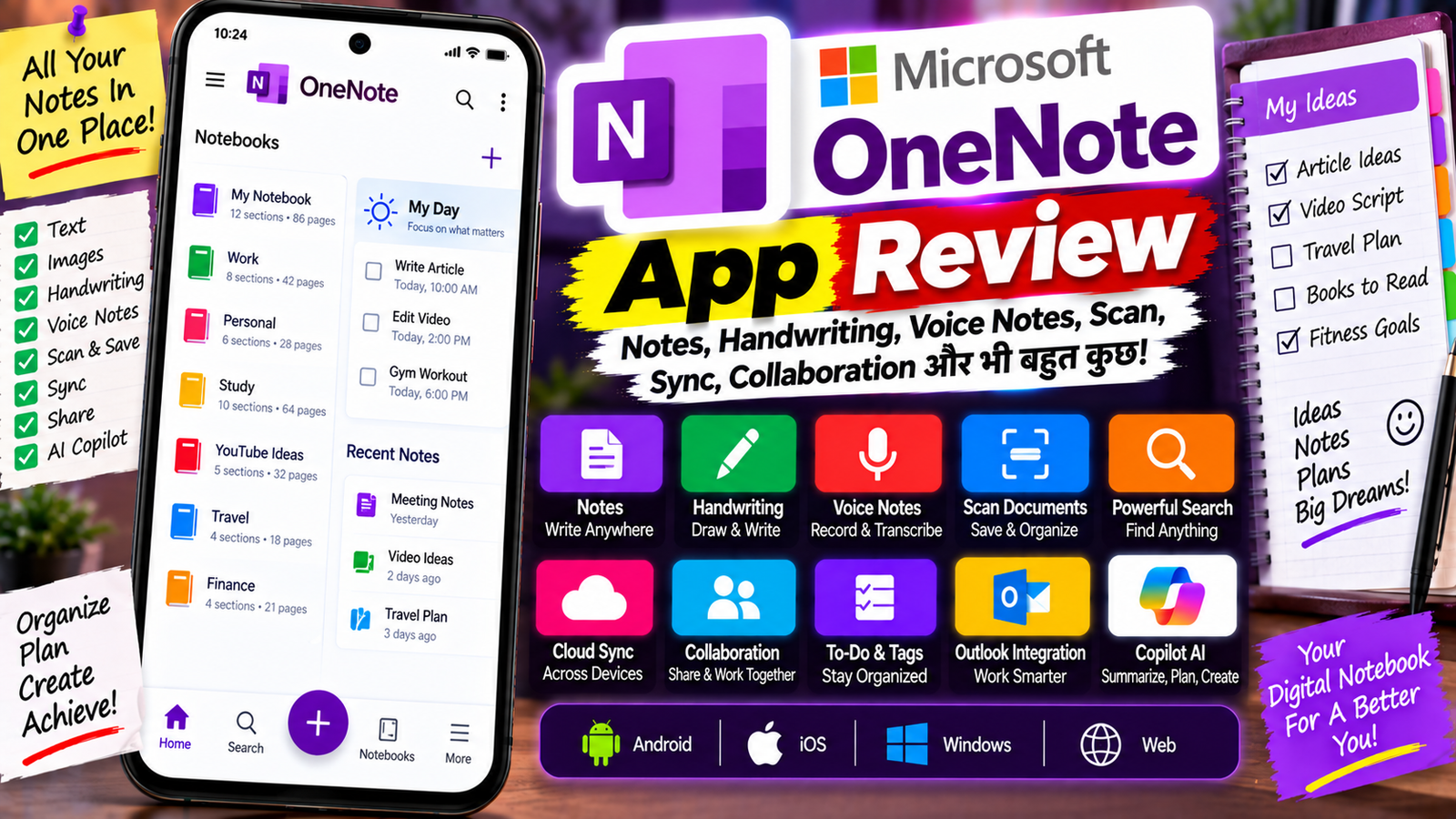
आज के समय में सिर्फ मोबाइल में छोटी-छोटी notes लिखना ही काफी नहीं है। कई बार हमें एक ही जगह पर text notes, images, PDFs, screenshots, handwritten notes, voice recordings, checklists और important information को व्यवस्थित करके रखना पड़ता है।
ऐसे काम के लिए Microsoft OneNote एक काफी powerful digital note-taking app है। यह सिर्फ एक simple notes app नहीं है, बल्कि इसमें आप अलग-अलग Notebooks, Sections और Pages बनाकर अपने पूरे notes को व्यवस्थित कर सकते हैं। Microsoft के अनुसार OneNote का इस्तेमाल personal notes, research, projects, school work और workplace collaboration के लिए किया जा सकता है।
OneNote में notes को अलग-अलग devices पर access किया जा सकता है और cloud synchronization की मदद से किए गए changes दूसरे devices पर भी उपलब्ध हो सकते हैं।
इस article में हम Microsoft OneNote के features, इस्तेमाल करने का तरीका, handwriting, voice notes, document scanning, search, sharing, synchronization, Copilot, फायदे, कमियां और privacy से जुड़ी जरूरी बातें विस्तार से समझेंगे।
OneNote क्या है?
Microsoft OneNote एक digital note-taking और information-organizing app है।
इसे आप एक ऐसे digital notebook की तरह समझ सकते हैं जिसमें pages खत्म नहीं होते। Microsoft OneNote में notebooks को sections और pages में organize करने की सुविधा देता है।
उदाहरण के लिए आप एक Notebook बना सकते हैं:
My Personal Notebook
इसके अंदर sections हो सकते हैं:
- Personal
- Work
- Shopping
- Ideas
- Travel
- Finance
- Study
और हर section के अंदर अलग-अलग pages बनाए जा सकते हैं।
इससे बहुत सारे notes को एक ही जगह व्यवस्थित रखना आसान हो जाता है।
OneNote के मुख्य Features
1. Digital Notebooks
OneNote का सबसे basic और important feature इसका Notebook system है।
आप अलग-अलग कामों के लिए अलग notebooks बना सकते हैं।
उदाहरण:
YouTube Notebook
इसके sections:
- Video Ideas
- Scripts
- Sponsorship
- Research
- Thumbnail Ideas
इस तरह बड़े amount में information को भी व्यवस्थित तरीके से रखा जा सकता है।
2. Sections और Pages
OneNote में Notebook के अंदर Sections और Sections के अंदर Pages होते हैं।
मान लीजिए आपका एक notebook है:
Study
इसके अंदर sections हो सकते हैं:
- Maths
- Science
- English
- Computer
और Maths section के अंदर:
- Algebra
- Geometry
- Important Formulas
जैसे अलग-अलग pages बनाए जा सकते हैं।
Microsoft के अनुसार OneNote notebooks को sections और pages के जरिए organize किया जा सकता है।
3. कहीं भी Text लिखें
OneNote में traditional notes apps की तरह सिर्फ एक fixed text box में लिखना जरूरी नहीं है।
आप page पर अलग-अलग जगह text add कर सकते हैं और information को अपनी जरूरत के अनुसार arrange कर सकते हैं।
Microsoft OneNote को एक flexible canvas की तरह describe करता है, जिसमें text, pictures, graphics और अन्य content को एक ही page पर रखा जा सकता है।
4. Handwritten Notes
अगर आपको typing की बजाय लिखकर notes बनाना पसंद है तो OneNote में digital handwriting का support मिलता है।
आप compatible device या stylus का इस्तेमाल करके screen पर directly लिख सकते हैं।
Android पर OneNote में Pen और Highlighter tools के जरिए handwritten notes बनाए जा सकते हैं। Ink को erase, select, move या resize भी किया जा सकता है।
Students के लिए यह feature खास तौर पर उपयोगी हो सकता है।
उदाहरण:
- Maths formulas
- Diagrams
- Class notes
- Quick sketches
- PDF annotations
- Meeting notes
5. Images और Screenshots
OneNote में सिर्फ text ही नहीं, बल्कि images और screenshots भी add किए जा सकते हैं।
उदाहरण के लिए अगर आप किसी website से कोई important information पढ़ रहे हैं तो उसका screenshot लेकर उसी page में रख सकते हैं।
Microsoft के अनुसार OneNote pages में pictures, graphics और web content जैसी चीजें भी शामिल की जा सकती हैं।
6. Voice Notes
अगर आप typing नहीं करना चाहते तो OneNote में audio notes भी record किए जा सकते हैं।
Microsoft के Android support documentation के अनुसार OneNote में audio notes record और insert किए जा सकते हैं।
यह feature इन situations में उपयोगी हो सकता है:
- Meeting
- Interview
- Lecture
- Brainstorming
- Personal reminders
- Quick ideas
7. Voice Transcription
OneNote के current app experience में voice transcription से audio को text में बदलने की सुविधाएं भी उपलब्ध हैं, हालांकि feature availability device, account और version के अनुसार अलग हो सकती है। Microsoft की current app listing में voice dictation और audio transcription features का उल्लेख है।
इसका फायदा यह है कि आपको हर बात manually type करने की जरूरत कम पड़ सकती है।
8. Search
अगर आपके OneNote में बहुत सारे notes हैं तो किसी पुराने information को ढूंढना मुश्किल हो सकता है।
इसीलिए OneNote में powerful Search feature दिया गया है।
आप किसी keyword या phrase को search करके अपने notes और captured information को ढूंढ सकते हैं। Microsoft के अनुसार OneNote में notes और files के अंदर information search की जा सकती है।
उदाहरण:
अगर आपने कई महीने पहले किसी page पर लिखा था:
“YouTube Sponsorship Ideas”
तो आप search में यही keyword डालकर उसे ढूंढ सकते हैं।
9. To-Do और Checklists
OneNote में simple checklists और action items भी बनाए जा सकते हैं।
उदाहरण:
Video Upload Checklist
☐ Script Complete
☐ Voiceover Complete
☐ Editing Complete
☐ Thumbnail Complete
☐ Description Complete
☐ Video Upload
Microsoft के अनुसार OneNote में To-Do tags और lists का इस्तेमाल करके important action items को track किया जा सकता है।
10. Tags
Important information को पहचानने के लिए OneNote में Tags का इस्तेमाल किया जा सकता है।
उदाहरण:
- Important
- To Do
- Question
- Remember for Later
- Contact
- Idea
इससे लंबे notes में जरूरी information को पहचानना आसान होता है।
11. Files और Documents
OneNote pages में files और अन्य information भी रखी जा सकती है।
अगर आप किसी project पर काम कर रहे हैं तो उसी notebook में:
- Notes
- Images
- Documents
- Links
- Checklists
- Research
जैसी चीजों को एक साथ organize कर सकते हैं।
इसका फायदा यह है कि project से जुड़ी information अलग-अलग apps में बिखरी नहीं रहती।
OneNote में Scan Feature
OneNote के current mobile experience में documents और pictures को scan करने और image से text extract करने जैसी सुविधाएं भी उपलब्ध हैं। Microsoft की Google Play listing में document/image scanning और text extraction features का उल्लेख है।
मान लीजिए आपके पास कोई printed document है।
आप उसे scan करके OneNote में रख सकते हैं और जरूरत पड़ने पर उस information को बाद में access कर सकते हैं।
यह feature students, office workers और document-heavy workflows के लिए उपयोगी हो सकता है।
Copilot और AI Features
Microsoft OneNote के current experience में Copilot भी एक महत्वपूर्ण feature है।
Microsoft के अनुसार Copilot in OneNote prompts के आधार पर plans बनाने, ideas generate करने, lists तैयार करने और information organize करने में मदद कर सकता है।
Current Google Play listing में AI-powered note summaries और meeting/class discussion summaries जैसे features का भी उल्लेख है।
हालांकि AI features की availability आपके Microsoft account, subscription, region और app version पर निर्भर कर सकती है।
इसलिए हर user को OneNote में बिल्कुल समान AI features दिखाई दें, यह जरूरी नहीं है।
OneNote Sync कैसे काम करता है?
OneNote की सबसे उपयोगी सुविधाओं में से एक है cloud synchronization।
अगर आपका notebook cloud में stored है तो OneNote आपके notes को अलग-अलग devices के बीच sync कर सकता है।
Microsoft के अनुसार OneNote changes को automatically synchronize करता है और OneDrive के साथ notes sync किए जा सकते हैं।
उदाहरण के लिए:
आपने mobile पर कोई note लिखा।
बाद में laptop खोलने पर वही notebook वहां भी उपलब्ध हो सकती है।
इससे बार-बार files को manually transfer करने की जरूरत कम होती है।
OneNote को कैसे इस्तेमाल करें?
Step 1: OneNote Install करें
अपने supported Android या iOS device पर Microsoft OneNote install करें।
Microsoft OneNote को mobile और web पर उपलब्ध कराता है।
Step 2: Microsoft Account से Sign In करें
अपना Microsoft account इस्तेमाल करके sign in करें।
यह account आपकी notebooks को synchronize करने में महत्वपूर्ण भूमिका निभाता है।
Step 3: Notebook बनाएं
अब एक नया Notebook बनाएं।
उदाहरण:
My Notes
Step 4: Section बनाएं
Notebook के अंदर अलग-अलग sections बनाएं।
उदाहरण:
- Work
- Personal
- Study
- Ideas
Step 5: Page बनाएं
अब किसी section के अंदर नया page बनाएं और notes लिखना शुरू करें।
Step 6: Content Add करें
आप जरूरत के अनुसार:
- Text
- Image
- Checklist
- Drawing
- Audio
- Links
- Files
जैसी information जोड़ सकते हैं।
OneNote में Notes Share कैसे करें?
अगर आप किसी दूसरे व्यक्ति के साथ notes पर काम करना चाहते हैं तो OneNote में notebook या page share किया जा सकता है।
Microsoft के अनुसार OneNote में single page या पूरा notebook share किया जा सकता है।
Shared notebook में multiple लोग collaboration कर सकते हैं।
यह feature इन कामों में useful हो सकता है:
- Team Projects
- School Projects
- Meeting Notes
- Family Planning
- Research
- Group Study
OneNote Web में collaborative notebooks में दूसरे users के updates भी दिखाई दे सकते हैं।
OneNote और Microsoft Ecosystem
OneNote Microsoft ecosystem के साथ अच्छी तरह integrate होता है।
आप इसे Microsoft 365 के दूसरे applications के साथ इस्तेमाल कर सकते हैं। Microsoft OneNote को Word, Excel, PowerPoint, Outlook और OneDrive जैसे Microsoft services के साथ broader productivity ecosystem का हिस्सा रखता है।
अगर आप पहले से Microsoft services इस्तेमाल करते हैं तो OneNote का workflow समझना आसान हो सकता है।
OneNote के फायदे
बहुत ज्यादा Organization
Notebook → Section → Page structure की वजह से बड़ी मात्रा में information को व्यवस्थित किया जा सकता है।
Handwriting Support
Stylus या supported device के जरिए handwritten notes बनाए जा सकते हैं।
Voice Notes
जरूरी information को audio के रूप में भी capture किया जा सकता है।
Powerful Search
पुराने notes में keywords search करके information जल्दी ढूंढी जा सकती है।
Cross-Device Access
Cloud synchronization की वजह से supported devices पर notes access किए जा सकते हैं।
Collaboration
Shared notebooks के जरिए दूसरे लोगों के साथ मिलकर काम किया जा सकता है।
AI Features
Supported accounts और plans में Copilot और AI-powered features productivity बढ़ाने में मदद कर सकते हैं।
OneNote की कमियां
Interface शुरुआत में Complex लग सकता है
अगर आप सिर्फ simple notes लिखने के लिए app चाहते हैं तो OneNote का Notebook, Section और Page structure शुरुआत में थोड़ा ज्यादा लग सकता है।
Storage और Sync समझना जरूरी है
Cloud synchronization के कारण आपको यह समझना जरूरी है कि आपकी notebooks कहां stored हैं और कौन-सा account इस्तेमाल हो रहा है।
कुछ Features Account-dependent हैं
Copilot, AI और कुछ advanced capabilities सभी users को समान रूप से उपलब्ध नहीं हो सकतीं। Microsoft के अनुसार कुछ features subscription और availability पर निर्भर करते हैं।
Simple Notes के लिए Overkill
अगर आपको केवल दो-चार quick notes लिखने हैं तो OneNote की पूरी organizational system की जरूरत शायद न पड़े।
OneNote किसके लिए Useful है?
Microsoft OneNote इन users के लिए खास तौर पर उपयोगी हो सकता है:
- Students
- Teachers
- Office Employees
- Researchers
- Content Creators
- Freelancers
- Writers
- Business Users
- Project Teams
- Digital Note Lovers
Students इसमें subjects के हिसाब से notebooks बना सकते हैं।
Content creators ideas, scripts और research को organize कर सकते हैं।
Office users meetings, projects और action items manage कर सकते हैं।
OneNote और Google Keep में अंतर
Google Keep quick notes, checklists और simple reminders के लिए काफी straightforward experience देता है।
वहीं OneNote बड़े और structured notebooks के लिए ज्यादा detailed organization देता है।
OneNote में:
Notebook → Section → Page
जैसी hierarchy होने की वजह से complex information को भी व्यवस्थित किया जा सकता है।
अगर आपका काम केवल quick notes से चल जाता है तो simple notes app पर्याप्त हो सकता है।
अगर आपको research, documents, handwriting, audio और बड़े projects को एक जगह manage करना है तो OneNote का structure ज्यादा उपयोगी हो सकता है।
OneNote और Microsoft To Do में अंतर
दोनों Microsoft के productivity apps हैं, लेकिन दोनों का primary purpose अलग है।
Microsoft To Do का focus tasks, reminders और daily planning पर है।
OneNote का focus notes, research, information और digital notebooks पर है।
उदाहरण:
“आज वीडियो upload करना है” → Microsoft To Do
“वीडियो की पूरी script और research save करनी है” → OneNote
दोनों को साथ में इस्तेमाल किया जाए तो productivity workflow और व्यवस्थित हो सकता है।
Privacy और Security
OneNote में notes cloud services के जरिए synchronize हो सकते हैं। इसलिए Microsoft account की security को seriously लेना चाहिए।
Microsoft account पर strong password और available security features का इस्तेमाल करना बेहतर है।
Sensitive information जैसे passwords, banking PIN या अत्यधिक confidential information को किसी भी सामान्य note-taking app में रखने से बचना चाहिए।
Microsoft की current app listing में secure notes और enterprise-level security features का उल्लेख किया गया है, लेकिन privacy और data handling की वास्तविक स्थिति account, service और feature के अनुसार अलग हो सकती है।
क्या OneNote Free है?
OneNote का कई basic note-taking functionality के साथ free use available है। Microsoft की official website OneNote को Microsoft 365 ecosystem में भी उपलब्ध कराती है।
हालांकि Microsoft 365 subscription के साथ मिलने वाले features और storage benefits अलग हो सकते हैं।
AI/Copilot जैसे कुछ features के लिए specific subscription या eligibility की आवश्यकता हो सकती है।
FAQs
Microsoft OneNote क्या है?
Microsoft OneNote एक digital note-taking app है जिसमें notebooks, sections और pages के जरिए notes को organize किया जा सकता है।
क्या OneNote Android पर चलता है?
हाँ, Microsoft OneNote Android पर उपलब्ध है। Microsoft की official website Android और iOS mobile apps की उपलब्धता बताती है।
क्या OneNote में handwritten notes बना सकते हैं?
हाँ। Supported devices पर Pen और Ink tools का इस्तेमाल करके handwritten notes बनाए जा सकते हैं।
क्या OneNote में voice recording है?
हाँ। OneNote में audio notes record और insert किए जा सकते हैं।
क्या OneNote में notes sync होते हैं?
हाँ। OneNote notebooks cloud services के साथ synchronize हो सकते हैं और supported devices से access किए जा सकते हैं।
क्या OneNote में notes share कर सकते हैं?
हाँ। आप individual pages या पूरा notebook share कर सकते हैं और supported shared notebooks में collaboration भी कर सकते हैं।
क्या OneNote में Copilot है?
Microsoft OneNote में Copilot उपलब्ध है, लेकिन AI features की availability account, subscription और region के अनुसार अलग हो सकती है।
क्या OneNote में PDF या image रख सकते हैं?
हाँ। OneNote pages में images, files और अन्य content add किया जा सकता है।
क्या OneNote students के लिए useful है?
हाँ। Students इसमें subjects के हिसाब से notebooks और sections बनाकर handwritten notes, images, checklists और study material organize कर सकते हैं।
निष्कर्ष
Microsoft OneNote सिर्फ एक सामान्य notes app नहीं है। यह एक complete digital notebook system है जिसमें आप text, images, handwriting, audio, files, checklists, tags और research material को एक जगह organize कर सकते हैं।
इसके Notebook, Sections और Pages वाला structure बड़े amount में information को व्यवस्थित रखने में मदद करता है। Handwriting, voice notes, search, synchronization और collaboration जैसे features इसे simple note-taking से आगे ले जाते हैं।
इसके अलावा supported accounts और plans में Copilot और AI features notes को summarize, organize और ideas generate करने में मदद कर सकते हैं।
हालांकि अगर आपको केवल छोटे-छोटे quick notes लिखने हैं तो OneNote का detailed structure जरूरत से ज्यादा लग सकता है।
लेकिन students, professionals, researchers, content creators और ऐसे users जिन्हें एक जगह पर बड़े amount में information व्यवस्थित करके रखना है, उनके लिए OneNote एक feature-rich digital notebook solution है।