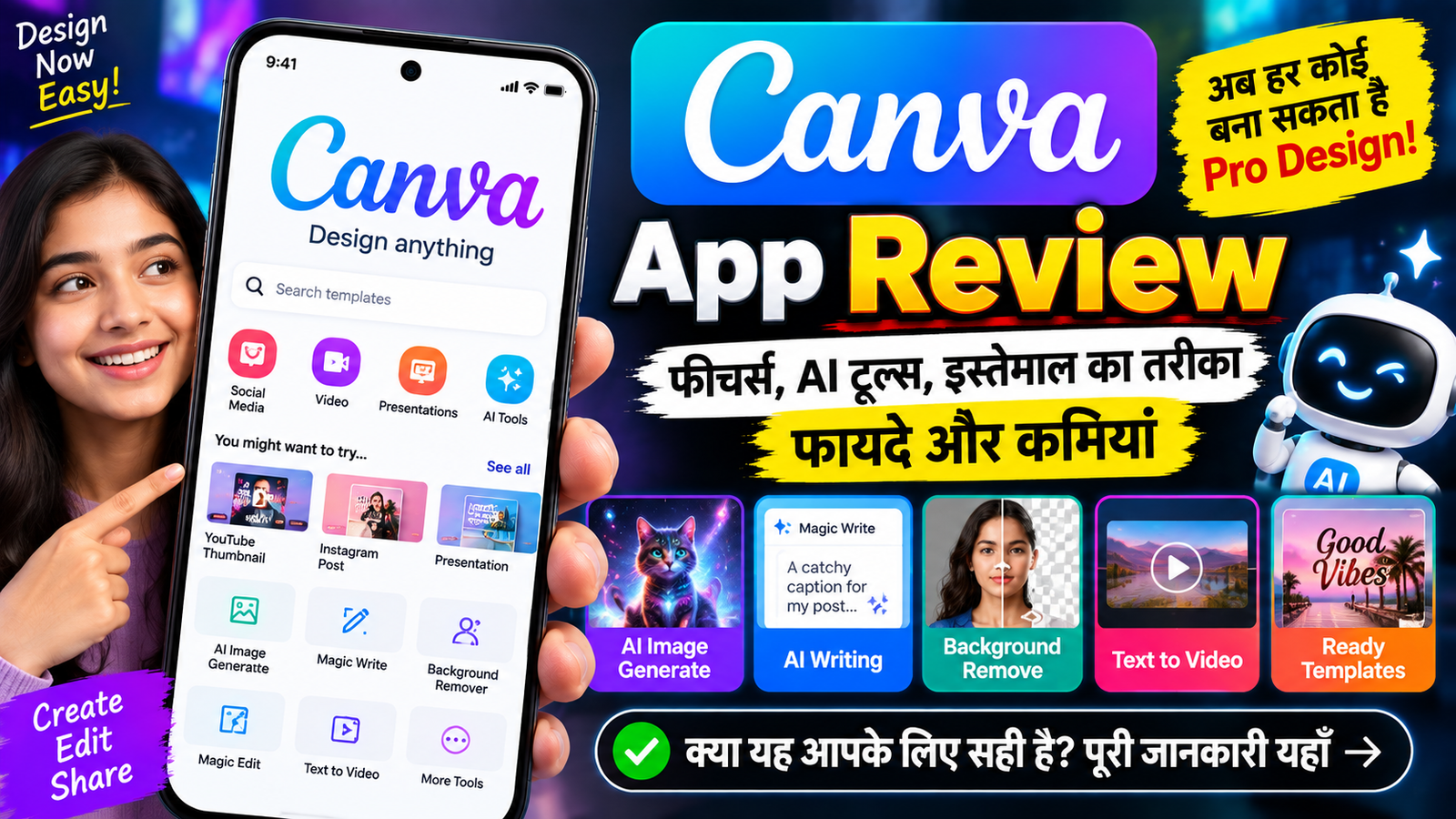
अगर आप मोबाइल से फोटो एडिटिंग, पोस्टर डिजाइन, YouTube Thumbnail, Instagram Post, Presentation, वीडियो या सोशल मीडिया कंटेंट बनाना चाहते हैं, तो Canva एक ऐसा ऐप है जिसे बिना किसी प्रोफेशनल डिजाइनिंग अनुभव के भी इस्तेमाल किया जा सकता है।
पहले Canva को मुख्य रूप से graphic design और ready-made templates के लिए जाना जाता था, लेकिन अब इसमें AI आधारित कई सुविधाएं भी शामिल हो चुकी हैं। Canva के AI tools की मदद से यूजर सिर्फ एक idea या prompt देकर design, image, text और दूसरे creative assets तैयार करने में सहायता ले सकता है। Canva AI 2.0 में conversational design, editable layered output, brand intelligence, web research और Canva Code जैसे नए workflows भी शामिल किए गए हैं।
Canva का इस्तेमाल YouTube creators, bloggers, students, businesses, marketers और सामान्य मोबाइल यूजर्स अलग-अलग तरह के creative कामों के लिए करते हैं।
इस लेख में हम Canva App Review के जरिए इसके प्रमुख features, AI tools, mobile पर इस्तेमाल करने का तरीका, फायदे, कमियां, free और paid usage तथा अलग-अलग users के लिए इसकी उपयोगिता के बारे में विस्तार से जानेंगे।
Canva क्या है?
Canva एक visual design और content creation platform है, जिसकी मदद से यूजर अलग-अलग प्रकार के digital और print designs तैयार कर सकता है।
इसमें templates, photos, graphics, fonts, videos और दूसरे design elements का इस्तेमाल करके content तैयार किया जा सकता है।
आप Canva में शुरुआत किसी blank design से कर सकते हैं या फिर तैयार template को customize कर सकते हैं।
उदाहरण के लिए आप बना सकते हैं:
- YouTube Thumbnail
- Instagram Post
- Instagram Story
- YouTube Banner
- Presentation
- Poster
- Flyer
- Logo
- Invitation
- Resume
- Social Media Graphics
- Video
- Documents
Canva का एक बड़ा फायदा इसका drag-and-drop आधारित editing experience है, जिससे complex graphic-design software की तुलना में शुरुआत करना आसान हो सकता है।
Canva App किन डिवाइस पर इस्तेमाल किया जा सकता है?
Canva का इस्तेमाल मोबाइल और कंप्यूटर दोनों पर किया जा सकता है। मोबाइल यूजर्स supported Android और iOS apps के जरिए अपने designs पर काम कर सकते हैं, जबकि desktop users web और desktop experience का इस्तेमाल कर सकते हैं।
इसका मतलब है कि अगर आपने मोबाइल पर कोई design शुरू किया है, तो Canva के उपलब्ध account और sync सुविधाओं के अनुसार उसे दूसरे device पर भी आगे edit किया जा सकता है।
Canva App के प्रमुख फीचर्स
1. Ready-Made Templates
Canva की सबसे लोकप्रिय सुविधाओं में templates शामिल हैं।
अगर आपको खुद से design का पूरा layout बनाने में परेशानी होती है, तो किसी suitable template को चुनकर उसमें अपना text, image और branding elements बदल सकते हैं।
उदाहरण के लिए YouTube Thumbnail बनाते समय आप पहले से तैयार thumbnail layout चुन सकते हैं और फिर उसमें अपना title और photo लगा सकते हैं।
इसी तरह Instagram Post, Presentation और Poster के लिए भी templates का इस्तेमाल किया जा सकता है।
2. Drag and Drop Editor
Canva का editor नए users के लिए relatively simple रखा गया है।
आप किसी image, text या graphic element को select करके उसे design में अपनी जरूरत के अनुसार position कर सकते हैं।
Text का font, size और alignment बदला जा सकता है। इसी तरह images को resize, crop और reposition किया जा सकता है।
इससे बिना advanced graphic-design knowledge के भी basic से लेकर काफी detailed designs तैयार किए जा सकते हैं।
3. AI से Design बनाने की सुविधा
Canva अब AI को design workflow का हिस्सा बना रहा है।
Canva AI 2.0 में यूजर बातचीत के जरिए अपनी जरूरत बता सकता है और AI उस idea से design तैयार करने में मदद कर सकता है। Canva के अनुसार AI 2.0 का उद्देश्य idea से finished design तक conversational workflow उपलब्ध कराना है।
उदाहरण के लिए आप लिख सकते हैं:
“एक modern technology website के लिए homepage design तैयार करो।”
इसके बाद Canva AI उपलब्ध सुविधाओं के अनुसार design बनाने और उसे आगे refine करने में सहायता कर सकता है।
4. AI Image Generation
Canva में AI की मदद से images generate करने की सुविधाएं भी उपलब्ध हैं।
Canva के अनुसार Dream Lab सहित उसके AI-powered tools prompt के आधार पर images बनाने में मदद कर सकते हैं और generated visuals को Canva design workflow में इस्तेमाल किया जा सकता है।
उदाहरण:
“एक futuristic smartphone को neon blue background के सामने दिखाने वाली image बनाओ।”
इस तरह के prompt से creative visual तैयार करने की कोशिश की जा सकती है।
5. Magic Write
अगर आपको किसी design के लिए text लिखने में परेशानी होती है, तो Canva का Magic Write उपयोगी हो सकता है।
Canva के अनुसार Magic Write का इस्तेमाल text का first draft तैयार करने, उसे summarize करने या expand करने के लिए किया जा सकता है।
इसका इस्तेमाल social media captions, headings, descriptions, marketing copy और दूसरे writing tasks में किया जा सकता है।
6. Magic Edit
Canva में AI-based image editing के लिए Magic Edit जैसे tools भी उपलब्ध हैं।
Canva के अनुसार Magic Edit की मदद से text prompt देकर image के किसी हिस्से को add, replace या edit किया जा सकता है।
उदाहरण के लिए अगर किसी फोटो में background या कोई object बदलना है, तो AI editing tool का इस्तेमाल किया जा सकता है।
7. Magic Grab
Magic Grab किसी image के subject को अलग editable element की तरह इस्तेमाल करने में मदद करता है।
Canva के अनुसार इससे image में मौजूद subject को select करके reposition या resize किया जा सकता है और उसके साथ text तथा दूसरे design elements भी जोड़े जा सकते हैं।
यह feature खासकर posters, thumbnails और promotional graphics में उपयोगी हो सकता है।
8. Magic Expand
कभी-कभी फोटो का framing design के लिए सही नहीं होता। उदाहरण के लिए आपके पास vertical photo है लेकिन आपको horizontal design बनाना है।
Canva का Magic Expand AI की मदद से image को उसके original frame से आगे expand करने के लिए बनाया गया है। Canva के अनुसार इसका इस्तेमाल awkward framing को सुधारने या image को दूसरे aspect ratio में adapt करने के लिए किया जा सकता है।
9. Background Remove
Canva में image से background हटाने की सुविधा भी उपलब्ध है।
यह feature product photos, profile pictures, thumbnails और promotional designs में काफी उपयोगी हो सकता है।
Background हटाने के बाद आप subject के पीछे नया background लगा सकते हैं और image को अपने design के अनुसार customize कर सकते हैं।
10. Magic Morph
Magic Morph का इस्तेमाल text या shapes का visual appearance बदलने के लिए किया जा सकता है।
Canva के अनुसार यूजर written prompt की मदद से text या shape को अलग-अलग effects, textures और styles में बदल सकता है।
यह feature creative posters, social media graphics और promotional designs में उपयोगी हो सकता है।
Canva से YouTube Thumbnail कैसे बनाएं?
Canva YouTube creators के लिए काफी उपयोगी हो सकता है।
स्टेप 1: Canva खोलें
Canva App खोलें और search option में YouTube Thumbnail लिखें।
स्टेप 2: Template चुनें
आपको कई अलग-अलग thumbnail templates दिखाई दे सकते हैं। अपनी जरूरत के अनुसार कोई template चुनें।
स्टेप 3: Text बदलें
Template में मौजूद headline को अपने वीडियो के title के अनुसार बदलें।
उदाहरण:
“ChatGPT का नया फीचर!”
Text को बड़ा और readable रखना बेहतर होता है, खासकर मोबाइल स्क्रीन पर।
स्टेप 4: Photo लगाएं
अपनी photo upload करके template में add करें।
अगर background हटाना है, तो उपलब्ध background-removal feature का इस्तेमाल किया जा सकता है।
स्टेप 5: Design Customize करें
आप colors, fonts, icons, shapes और दूसरे elements को अपनी जरूरत के अनुसार बदल सकते हैं।
स्टेप 6: Download करें
Design पूरा होने के बाद उसे supported format में download या share किया जा सकता है।
Canva से Instagram Post कैसे बनाएं?
Instagram content के लिए भी Canva में कई templates उपलब्ध हैं।
सबसे पहले Instagram Post या संबंधित design format चुनें। इसके बाद template select करके उसमें अपना text और images जोड़ें।
अगर आपको रोजाना social media content बनाना है, तो एक consistent template बनाकर उसके text और images बदलने से workflow तेज किया जा सकता है।
Canva में AI का इस्तेमाल कैसे करें?
Canva के AI tools का इस्तेमाल करने का तरीका feature के अनुसार अलग हो सकता है, लेकिन सामान्य workflow काफी आसान है।
स्टेप 1: Canva में AI सुविधा खोलें
अपने Canva account में login करने के बाद उपलब्ध Canva AI या संबंधित AI tool को खोलें।
स्टेप 2: अपना idea लिखें
आप जो बनाना चाहते हैं उसे natural language में describe करें।
उदाहरण:
“एक clean और modern mobile app review website के लिए social media banner बनाओ।”
स्टेप 3: Generated result देखें
AI आपके prompt के आधार पर उपलब्ध सुविधा के अनुसार design या content तैयार करने की कोशिश करेगा।
स्टेप 4: Design को edit करें
AI से generated result को final मानना जरूरी नहीं है। Canva के editor में जाकर text, image, font, color और layout को अपनी जरूरत के अनुसार बदला जा सकता है।
Canva AI 2.0 का एक महत्वपूर्ण हिस्सा यही editable workflow है, जिसमें generated designs के individual elements को आगे edit करने की सुविधा पर जोर दिया गया है।
Canva से Video भी बनाया जा सकता है?
हाँ, Canva में video creation के लिए भी tools और templates उपलब्ध हैं।
Canva के Magic Media जैसे AI features text या existing image से short video generation में मदद कर सकते हैं।
इसके अलावा Canva ने image-to-video functionality में भी updates किए हैं। Canva की 2026 की product updates के अनुसार still images को short videos में बदलने की सुविधा को बेहतर किया गया है और human faces वाले images के लिए भी support जोड़ा गया है।
इससे creators simple photo को short animated content में बदलने जैसे काम कर सकते हैं।
Canva के फायदे
1. Beginners के लिए आसान
Canva का interface beginners को ध्यान में रखकर बनाया गया है। आपको शुरुआत करने के लिए professional graphic designer होना जरूरी नहीं है।
2. Templates की सुविधा
Ready-made templates design बनाने की शुरुआत को आसान कर सकते हैं।
3. AI Tools
AI-powered design, image generation, writing और editing tools creative workflow को तेज कर सकते हैं।
4. Mobile पर Design
Canva का mobile experience उन users के लिए उपयोगी है जो कंप्यूटर के बजाय फोन से content बनाना चाहते हैं।
5. कई प्रकार के Content
एक ही platform में thumbnail, poster, presentation, social media graphics, documents और video जैसे अलग-अलग प्रकार के content बनाए जा सकते हैं।
6. Social Media Creators के लिए उपयोगी
Instagram, YouTube और अन्य platforms के लिए अलग-अलग formats में designs तैयार किए जा सकते हैं।
7. AI से काम तेज करने की संभावना
Canva AI 2.0 conversational creation और कई intelligent workflows को जोड़ने की दिशा में काम कर रहा है।
Canva की कमियां
Canva के कई फायदे हैं, लेकिन कुछ limitations को भी ध्यान में रखना चाहिए।
1. सभी सुविधाएं Free नहीं हैं
Canva में free features उपलब्ध हैं, लेकिन कुछ advanced AI tools और premium assets के लिए paid access या usage limits लागू हो सकती हैं।
Canva के अनुसार कुछ AI tools इस्तेमाल करते समय free users अपने AI usage limit तक पहुंच सकते हैं, जिसके बाद upgrade की आवश्यकता पड़ सकती है।
2. AI Results हमेशा Perfect नहीं होते
AI-generated image, text या design में कभी-कभी ऐसी चीजें आ सकती हैं जिन्हें manually सुधारने की जरूरत होती है।
इसलिए AI output को final करने से पहले उसे check करना जरूरी है।
3. बहुत ज्यादा Templates से Confusion
Beginners के लिए Canva में उपलब्ध बड़ी संख्या में templates और design options कभी-कभी confusing हो सकते हैं।
4. Internet की जरूरत
Canva की कई सुविधाएं cloud-based हैं, इसलिए stable internet connection उपयोगी रहता है।
5. Professional Design Software का पूरा Replacement नहीं
Advanced graphic designers को कुछ बहुत specific professional workflows के लिए dedicated software की जरूरत पड़ सकती है।
Canva beginners और fast content creation के लिए सुविधाजनक है, लेकिन हर प्रकार के professional design workflow का replacement मानना सही नहीं होगा।
Canva Free और Paid में क्या अंतर है?
Canva में free access के साथ-साथ paid plans भी उपलब्ध हैं।
Free users को basic design tools, templates और कुछ AI features का इस्तेमाल करने का अवसर मिलता है। वहीं paid plans में premium content और अतिरिक्त features तथा अधिक AI usage जैसी सुविधाएं plan के अनुसार उपलब्ध हो सकती हैं।
AI tools के usage limits भी account और plan के अनुसार अलग हो सकते हैं। Canva स्वयं बताता है कि free users AI credit limit तक पहुंचने के बाद upgrade करने के लिए कहा जा सकता है।
इसलिए paid plan लेने से पहले वर्तमान pricing, features और AI limits को Canva की official website पर देखना बेहतर है।
Canva किन लोगों के लिए उपयोगी है?
YouTube Creators
Thumbnail, banner, video graphics और social media promotional content बनाने के लिए Canva उपयोगी हो सकता है।
Instagram Creators
Instagram posts, Stories, Reels covers और promotional graphics बनाने में इसका इस्तेमाल किया जा सकता है।
Students
Presentation, posters, assignments और visual study material तैयार करने में Canva मदद कर सकता है।
Bloggers
Blog graphics, featured images, social media posts और अन्य visual content बनाया जा सकता है।
Small Businesses
Businesses promotional posters, social media creatives, presentations और marketing materials तैयार कर सकते हैं।
Freelancers
Freelancers client के लिए social media designs, presentations, posters और दूसरे creative assets तैयार कर सकते हैं।
Canva इस्तेमाल करते समय किन बातों का ध्यान रखें?
सबसे पहले किसी भी AI-generated content को final करने से पहले review करें।
दूसरा, अगर आप business या client के लिए design बना रहे हैं, तो इस्तेमाल किए गए images, fonts, elements और AI-generated assets के licensing terms को समझना जरूरी है।
तीसरा, AI से generated text में facts की जांच करें।
चौथा, किसी दूसरे व्यक्ति या brand की copyrighted सामग्री को बिना अनुमति के इस्तेमाल करने से बचें।
पांचवां, अगर आप website या social media के लिए नियमित content बना रहे हैं, तो एक consistent brand style बनाए रखें। Canva में brand-related features इसी तरह के workflows को व्यवस्थित करने में मदद कर सकते हैं। Canva AI 2.0 में Brand Intelligence पर भी जोर दिया गया है।
Canva के AI Tools से क्या-क्या बनाया जा सकता है?
Canva में उपलब्ध AI capabilities का इस्तेमाल अलग-अलग creative कामों के लिए किया जा सकता है।
उदाहरण के लिए:
- AI image generation
- AI-assisted design
- Text generation
- Image editing
- Background editing
- Image expansion
- AI video creation
- Presentation creation
- Content ideas
- Data visualization
- Interactive experiences
- Brand-based designs
Canva के हाल के AI updates में Canva Code और Canva Sheets जैसे नए workflows भी शामिल किए गए हैं, जिनका उद्देश्य interactive experiences और data-related creative workflows को आसान बनाना है।
अक्सर पूछे जाने वाले सवाल (FAQs)
1. Canva App क्या है?
Canva एक design और content creation platform है, जिसका इस्तेमाल graphics, presentations, videos, documents और social media content बनाने के लिए किया जा सकता है।
2. क्या Canva मोबाइल में इस्तेमाल किया जा सकता है?
हाँ, Canva को मोबाइल पर भी इस्तेमाल किया जा सकता है। इसके जरिए फोन से अलग-अलग प्रकार के designs और creative content तैयार किए जा सकते हैं।
3. क्या Canva फ्री है?
Canva में free access उपलब्ध है, लेकिन कुछ premium features, assets और AI usage limits plan के अनुसार अलग हो सकते हैं।
4. क्या Canva में AI Image बनाई जा सकती है?
हाँ। Canva में AI-powered image generation tools उपलब्ध हैं। Canva के AI ecosystem में image generation और अन्य creative AI capabilities शामिल हैं।
5. क्या Canva से YouTube Thumbnail बनाया जा सकता है?
हाँ। Canva में YouTube Thumbnail के लिए templates और editing tools उपलब्ध हैं।
6. क्या Canva से वीडियो बनाया जा सकता है?
हाँ। Canva में video creation tools और AI-based video features उपलब्ध हैं। Image-to-video जैसे features के जरिए images को short videos में बदलने की सुविधा भी उपलब्ध है।
7. Canva Magic Write क्या है?
Magic Write Canva का AI-powered writing tool है, जिसकी मदद से text का draft तैयार करने, उसे summarize करने या expand करने जैसे काम किए जा सकते हैं।
8. Canva Magic Edit क्या करता है?
Magic Edit AI की मदद से image के selected हिस्से को prompt के जरिए add, replace या edit करने में सहायता करता है।
9. Canva AI 2.0 क्या है?
Canva AI 2.0 Canva का conversational AI experience है, जिसका उद्देश्य idea से editable design और creative output तक यूजर की मदद करना है। इसमें conversational design, brand intelligence, web research और अन्य workflows शामिल हैं।
10. क्या Canva beginners के लिए उपयोगी है?
हाँ। Templates और सरल editing workflow के कारण beginners भी Canva से basic और intermediate-level designs बनाना शुरू कर सकते हैं।
11. क्या Canva से फोटो का background हटाया जा सकता है?
हाँ। Canva में background removal के लिए AI-powered सुविधा उपलब्ध है। इसके जरिए photo से background हटाकर नया background लगाया जा सकता है।
12. क्या Canva में AI से text लिखा जा सकता है?
हाँ। Magic Write जैसे AI writing tools text तैयार करने, summarize करने और expand करने में मदद कर सकते हैं।
निष्कर्ष
Canva एक ऐसा design platform है जो beginners से लेकर content creators और businesses तक अलग-अलग प्रकार के users के लिए उपयोगी हो सकता है। इसकी सबसे बड़ी विशेषताओं में ready-made templates, आसान editing tools और अब बढ़ती हुई AI capabilities शामिल हैं।
YouTube Thumbnail, Instagram Post, Presentation, Poster, Video या promotional graphic बनाने जैसे कामों के लिए Canva एक ही जगह कई अलग-अलग tools उपलब्ध कराता है।
AI के आने के बाद Canva का workflow और भी व्यापक हो गया है। Canva AI 2.0 conversational creation, editable designs, brand intelligence, web research और दूसरे intelligent workflows को एक साथ जोड़ने की दिशा में काम कर रहा है।
हालांकि हर AI feature हर user या plan में समान रूप से उपलब्ध हो, यह जरूरी नहीं है। कुछ सुविधाओं पर usage limits या paid access लागू हो सकता है।
अगर आपका काम YouTube, Instagram, blogging, business marketing या सामान्य graphic design से जुड़ा है, तो Canva के templates और AI tools आपके content creation workflow में उपयोगी हो सकते हैं।