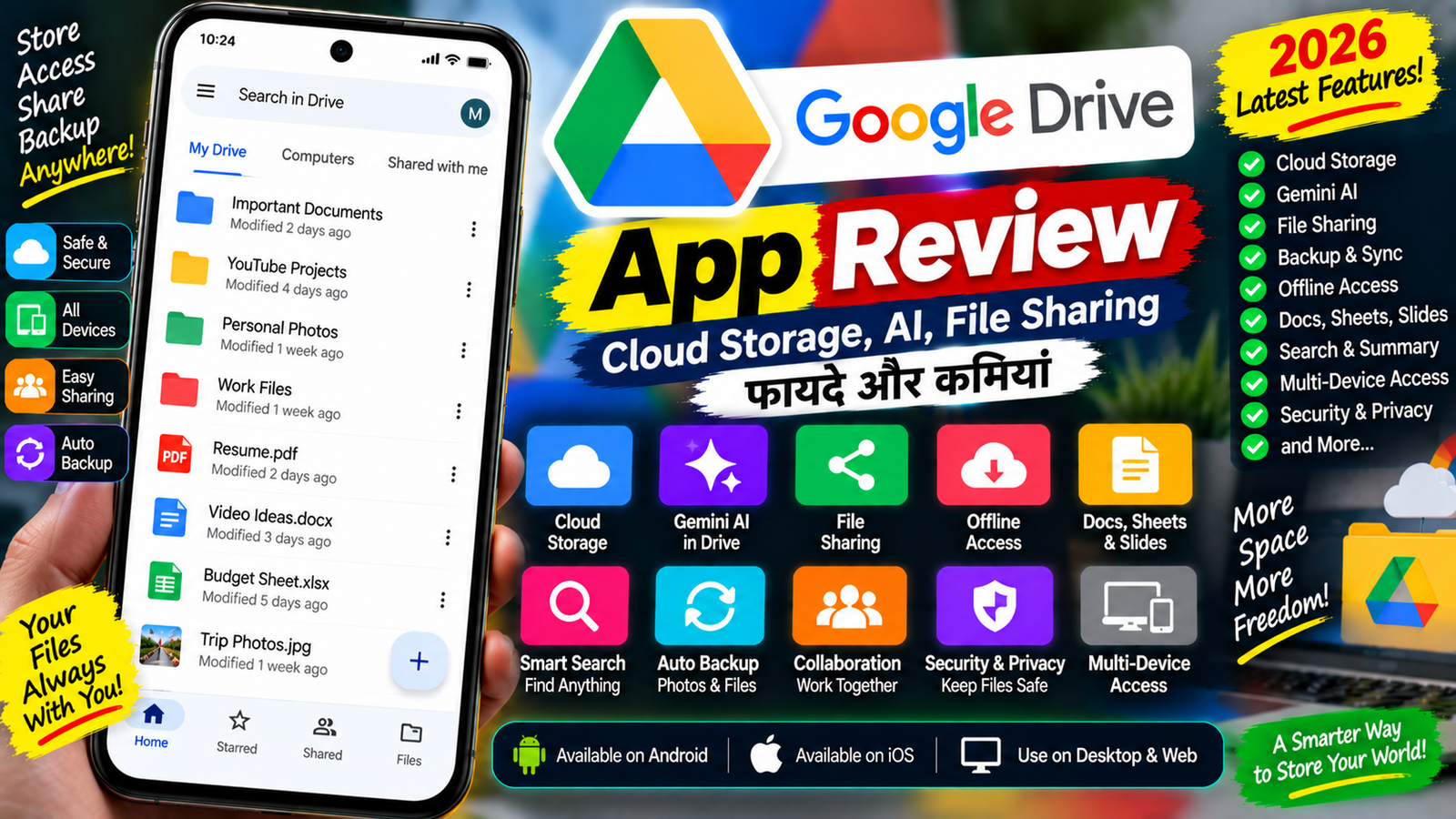
आज के समय में smartphone और computer में photos, videos, documents, PDFs और दूसरे जरूरी files की संख्या लगातार बढ़ती जा रही है। ऐसे में files को सुरक्षित रखने, कहीं से भी access करने और दूसरों के साथ share करने के लिए cloud storage काफी उपयोगी हो जाता है।
Google Drive इसी काम के लिए Google का popular cloud storage platform है। इसकी मदद से आप documents, photos, videos, PDFs और दूसरे files को online store कर सकते हैं और जरूरत पड़ने पर smartphone, tablet या computer से access कर सकते हैं।
लेकिन Google Drive अब केवल files रखने की जगह नहीं रह गया है। Google ने Drive में Gemini AI को भी integrate किया है, जिसके जरिए eligible users natural language में files खोज सकते हैं, documents से information निकाल सकते हैं, files summarize कर सकते हैं और कई प्रकार के research तथा productivity tasks कर सकते हैं। Google के current documentation के अनुसार Gemini in Drive complex research, AI Overviews, file summaries, content creation और file organization जैसी capabilities दे सकता है, हालांकि इसके लिए eligible Google Workspace या Google AI plan की आवश्यकता हो सकती है।
इस Google Drive App Review में हम जानेंगे कि Google Drive क्या है, इसमें कितना storage मिलता है, files upload और share कैसे करें, offline files कैसे इस्तेमाल करें, Gemini AI क्या कर सकता है, backup के लिए Drive कितना उपयोगी है और इसके फायदे व कमियां क्या हैं।
Google Drive क्या है?
Google Drive एक cloud storage service है।
Cloud storage का मतलब है कि आपकी files केवल phone या computer की storage में नहीं रहतीं, बल्कि internet-based servers पर store की जा सकती हैं।
इसका फायदा यह है कि अगर आपका phone खराब हो जाए या आप नया device खरीद लें, तो account में login करके अपनी stored files दोबारा access कर सकते हैं।
Google Drive में आप:
- Documents
- PDFs
- Photos
- Videos
- ZIP files
- Microsoft Office files
- Google Docs
- Google Sheets
- Google Slides
जैसी कई तरह की files store कर सकते हैं।
Drive में क्या कर सकते हैं?
Google Drive के मुख्य features को आसान भाषा में समझते हैं।
1. File Upload
Drive में files upload करना काफी आसान है।
आप smartphone से photo, video, PDF या document upload कर सकते हैं।
Computer पर आप files के साथ पूरे folders भी upload कर सकते हैं।
एक बार file Drive में upload हो जाने के बाद उसे supported devices से access किया जा सकता है।
2. File Access
Google Drive का बड़ा फायदा यह है कि files को अलग-अलग devices से access किया जा सकता है।
उदाहरण के लिए आपने computer से कोई PDF Drive में upload की।
बाद में आप उसी Google Account से smartphone पर Drive खोलकर उस PDF को देख सकते हैं।
इससे files को बार-बार phone से computer या computer से phone में transfer करने की जरूरत कम हो सकती है।
3. File Sharing
Google Drive में किसी file या folder को दूसरे व्यक्ति के साथ share किया जा सकता है।
Share करते समय उपलब्ध permissions के अनुसार आप तय कर सकते हैं कि सामने वाला:
- केवल file देख सकता है
- Comment कर सकता है
- Edit कर सकता है
या नहीं।
यह feature students, teachers, office teams और creators के लिए काफी उपयोगी है।
उदाहरण के लिए आप किसी client के साथ project folder share कर सकते हैं या किसी student को study material भेज सकते हैं।
4. Google Docs, Sheets और Slides
Google Drive का connection Google Workspace के साथ भी है।
Drive में आप Google Docs, Google Sheets और Google Slides जैसी files store और manage कर सकते हैं।
इससे:
- Documents लिखना
- Spreadsheets बनाना
- Presentations तैयार करना
जैसे काम cloud-based तरीके से किए जा सकते हैं।
अगर आप किसी file को दूसरे लोगों के साथ share करते हैं तो supported Google Workspace files पर collaboration भी किया जा सकता है।
5. Offline Mode
Google Drive में कुछ files को offline access के लिए save किया जा सकता है।
Google के अनुसार Android users Google Docs, Sheets और Slides files को offline viewing और editing के लिए available कर सकते हैं।
Offline file कैसे रखें?
- Google Drive खोलें।
- जिस file को offline रखना है उसके सामने More पर tap करें।
- Make available offline चुनें।
- बाद में Drive, Docs, Sheets या Slides app के Offline section में file access करें।
यह feature travel या weak internet connection वाली जगहों पर उपयोगी हो सकता है।
6. Gemini AI
Google Drive का नया और महत्वपूर्ण हिस्सा Gemini AI integration है।
Eligible Google Workspace या Google AI plan वाले users Drive में Gemini का इस्तेमाल करके natural language में files खोज सकते हैं और उनसे information समझ सकते हैं।
उदाहरण के लिए traditional search में आपको exact file name याद रखना पड़ सकता है।
लेकिन Gemini में आप सामान्य भाषा में पूछ सकते हैं:
“Q4 marketing campaign की presentations दिखाओ।”
या:
“मेरे पिछले महीने के project documents में budget से जुड़ी जानकारी खोजो।”
Gemini natural-language query को समझकर relevant files खोजने में मदद कर सकता है।
7. AI Overview
Google Drive में Gemini-based AI Overview भी उपलब्ध है।
Google के अनुसार eligible users natural-language search करने पर results के ऊपर AI-generated summary देख सकते हैं।
इस summary में relevant files से information लेकर answer दिया जा सकता है और available citations के जरिए original files तक पहुंचा जा सकता है।
इसका फायदा यह है कि किसी बड़े collection में manually हर file खोलने की जरूरत कम हो सकती है।
8. Ask Gemini
Ask Gemini in Drive के जरिए आप अपनी files से जुड़े complex questions पूछ सकते हैं।
Google के अनुसार Gemini multiple files, folders और कुछ Workspace sources को analyze करके information को connect कर सकता है।
उदाहरण:
मान लीजिए आपके पास:
- Project report
- Meeting notes
- Budget spreadsheet
- Client emails
हैं।
आप Gemini से पूछ सकते हैं:
“इन documents के आधार पर project की मुख्य problems और pending tasks बताओ।”
Gemini उपलब्ध sources के आधार पर response तैयार कर सकता है।
9. Drive Projects
Google Drive में Gemini के साथ Projects का concept भी उपलब्ध है।
Project में specific files, folders या emails को एक fixed source set की तरह इस्तेमाल किया जा सकता है।
इससे एक particular project के लिए बार-बार उसी information के context में questions पूछना आसान हो सकता है।
Google के अनुसार Drive Projects web पर create किए जा सकते हैं, जबकि Android और iOS apps पर existing projects को खोलकर उनकी summaries और conversations देखी जा सकती हैं। Mobile पर project sources view-only होते हैं।
10. File Summary
Gemini की मदद से कुछ supported files को summarize किया जा सकता है।
Google Drive में PDFs और transcript वाले videos के लिए summary cards जैसी सुविधाएं भी उपलब्ध हो सकती हैं।
यह खासकर तब उपयोगी हो सकता है जब कोई document काफी लंबा हो और आपको पहले उसका quick overview चाहिए।
उदाहरण:
“इस PDF का short summary दो।”
या:
“इस document में मुख्य points क्या हैं?”
इस तरह आप पूरा document पढ़ने से पहले उसका basic structure समझ सकते हैं।
11. Research
Google Drive में Gemini को research और analysis के लिए भी इस्तेमाल किया जा सकता है।
Google के अनुसार Gemini multiple files और Workspace sources से information लेकर topics को synthesize कर सकता है।
उदाहरण के लिए किसी project के लिए कई research documents मौजूद हैं तो Gemini उनसे common points, differences और important information निकालने में मदद कर सकता है।
हालांकि research-related AI answers को final truth नहीं मानना चाहिए। Important information को original documents से verify करना जरूरी है।
12. File Organization
बहुत सारी files होने पर Drive को organize करना मुश्किल हो सकता है।
Google ने Gemini के जरिए file organization suggestions की सुविधा भी दी है।
Google के अनुसार Gemini content और existing organization patterns के आधार पर files को existing folders में move करने या नए folders बनाने के suggestions दे सकता है। यह feature Drive web पर English में उपलब्ध है और eligible files तथा permissions की conditions लागू होती हैं।
इससे cluttered Drive को organize करने में मदद मिल सकती है।
13. Search
Google Drive का normal search भी काफी उपयोगी है।
आप file name या keyword के आधार पर files खोज सकते हैं।
इसके अलावा filters का इस्तेमाल करके:
- File Type
- Owner
- Location
- Modified Date
जैसी information के आधार पर search को narrow किया जा सकता है।
अगर आपको file का exact name याद नहीं है तो Gemini-based natural language search eligible accounts में अतिरिक्त सुविधा दे सकता है।
14. Backup के लिए Drive
Google Drive को कई users important files के backup के लिए इस्तेमाल करते हैं।
उदाहरण:
- Documents
- Certificates
- PDFs
- Photos
- Work Files
- Project Files
को Drive में store किया जा सकता है।
लेकिन cloud storage को अकेला backup solution मानना हमेशा सही नहीं है।
बहुत important files की एक additional copy किसी दूसरे secure location पर रखना बेहतर practice हो सकती है।
15. Drive Desktop
Google Drive केवल mobile app तक सीमित नहीं है।
Computer users के लिए Drive for desktop भी उपलब्ध है।
इसके जरिए Drive files को computer workflow के साथ इस्तेमाल किया जा सकता है।
Google Drive Help में Drive for desktop के लिए streaming और mirroring जैसे options तथा macOS support से संबंधित documentation उपलब्ध है।
अगर आप computer पर बहुत सारी files के साथ काम करते हैं तो Drive for desktop useful हो सकता है।
Storage कैसे काम करता है?
Google Account storage केवल Drive के लिए नहीं होता।
Google ecosystem में storage Gmail, Google Drive और Google Photos जैसी services के बीच shared हो सकता है।
इसलिए अगर आपका Google storage भर जाता है तो इसका असर एक से ज्यादा Google services पर पड़ सकता है।
Storage manage करने के लिए unnecessary:
- Large Videos
- Old Files
- Duplicate Documents
- Unwanted Attachments
को delete करना उपयोगी हो सकता है।
Important files delete करने से पहले हमेशा verify करें।
Drive में File कैसे Upload करें?
Mobile पर सामान्य प्रक्रिया:
- Google Drive खोलें।
- नीचे या available interface में + button चुनें।
- Upload option चुनें।
- File select करें।
- Upload पूरा होने दें।
Computer पर:
- Drive website खोलें।
- New button पर click करें।
- File Upload या Folder Upload चुनें।
- File या folder select करें।
- Upload पूरा होने दें।
Folder कैसे बनाएं?
अगर Drive में बहुत सारी files हैं तो folders बनाना बेहतर organization देता है।
उदाहरण:
YouTube
Documents
Projects
Personal
Certificates
Photos
जैसे folders बनाए जा सकते हैं।
फिर संबंधित files को सही folder में रखा जा सकता है।
File Share कैसे करें?
- Google Drive खोलें।
- File select करें।
- Share option चुनें।
- जिस व्यक्ति के साथ share करना है उसका email डालें।
- Permission चुनें।
- Send करें।
कुछ cases में link sharing का option भी उपलब्ध होता है।
लेकिन public link बनाते समय सावधानी रखें, क्योंकि link जिसके पास होगा वह उपलब्ध permission के अनुसार file access कर सकता है।
Google Drive के फायदे
1. Cloud Storage
Files को cloud में store और access किया जा सकता है।
2. Multi-Device Access
एक ही account से अलग-अलग supported devices पर files access की जा सकती हैं।
3. Sharing
Files और folders को दूसरों के साथ share करना आसान है।
4. Collaboration
Google Docs, Sheets और Slides के साथ collaboration workflow बनाया जा सकता है।
5. Offline Access
Supported files को offline use के लिए save किया जा सकता है।
6. Gemini AI
Eligible plans में Gemini files खोजने, summarize करने, research और analysis में मदद कर सकता है।
7. File Search
Normal search के साथ eligible users natural-language AI search भी इस्तेमाल कर सकते हैं।
Google Drive की कमियां
1. Storage Limit
Google Account का available storage unlimited नहीं होता। ज्यादा files रखने पर additional storage की आवश्यकता पड़ सकती है।
2. Internet पर निर्भरता
Cloud में stored files को access करने के लिए सामान्यतः internet connection की जरूरत होती है, हालांकि selected files offline उपलब्ध कराई जा सकती हैं।
3. AI Features Paid हो सकते हैं
Gemini in Drive की कई advanced capabilities के लिए eligible Google Workspace या Google AI plan की आवश्यकता होती है।
4. Privacy का ध्यान
Sensitive documents को share करते समय permissions carefully check करनी चाहिए।
5. AI हमेशा Perfect नहीं
AI द्वारा generated summaries और answers में errors हो सकते हैं। Important information को original files से verify करना जरूरी है।
Privacy Tips
Google Drive इस्तेमाल करते समय privacy का ध्यान रखना जरूरी है।
Share Permissions Check करें
File share करते समय Viewer, Commenter या Editor permission सही तरीके से चुनें।
Public Link से बचें
Sensitive documents को public link के जरिए share करने से बचें।
Sensitive Files Secure रखें
Passwords, financial documents या highly private files को बिना जरूरत किसी third party के साथ share न करें।
AI Sources Check करें
Gemini को files के साथ इस्तेमाल करते समय यह देखें कि कौन-सी files या Workspace sources AI के लिए selected हैं।
Google के अनुसार Gemini in Drive में source scope को control करने के options उपलब्ध हैं।
Account Secure रखें
Google Account पर strong password और available security features का इस्तेमाल करें।
Drive किसके लिए है?
Students
Notes, PDFs, assignments और study material store करने के लिए।
Creators
Scripts, thumbnails, videos और project files organize करने के लिए।
Office Users
Documents, spreadsheets और presentations share करने के लिए।
Businesses
Team collaboration और shared files के लिए।
सामान्य Users
Important documents और personal files को cloud में रखने के लिए।
Google Drive Review: निष्कर्ष
Google Drive एक सामान्य cloud storage app से काफी आगे बढ़ चुका है। Files upload, storage, sharing और multi-device access जैसे basic features के साथ Google अब Gemini AI को Drive के अंदर ज्यादा deeply integrate कर रहा है।
Eligible users Gemini के जरिए natural-language search, AI Overviews, file summaries, research और multiple files के analysis जैसे काम कर सकते हैं।
2026 में Google ने Drive और दूसरे Workspace products के लिए Gemini capabilities को और expand किया है। Google के अनुसार नए features में multiple files, emails और web sources से context लेकर information समझने और Drive के अंदर AI-assisted research करने की capabilities शामिल हैं।
Offline access भी Google Drive का practical feature है। Supported Docs, Sheets और Slides files को पहले से offline available करके internet के बिना भी access और edit किया जा सकता है।
हालांकि Gemini के advanced features सभी users के लिए available नहीं हैं। Eligible Google Workspace या Google AI plan की जरूरत हो सकती है और कुछ features केवल web या specific languages/markets में उपलब्ध हैं।
कुल मिलाकर Google Drive students, creators, professionals और सामान्य users के लिए files को organize, store और share करने का practical platform है। AI integration की वजह से इसका उपयोग सिर्फ storage तक सीमित न रहकर research और productivity की तरफ भी बढ़ रहा है।
Google Drive FAQs
Google Drive क्या है?
Google Drive Google की cloud storage service है, जिसमें documents, photos, videos, PDFs और दूसरी files store और access की जा सकती हैं।
क्या Google Drive Free है?
Google Account के साथ Drive में cloud storage उपलब्ध होता है। Available storage Google Account की overall storage system के अंतर्गत आता है और जरूरत पड़ने पर अतिरिक्त storage खरीदा जा सकता है।
क्या Google Drive में Offline Files चला सकते हैं?
हाँ। Supported Google Docs, Sheets और Slides files को offline access के लिए save किया जा सकता है।
Gemini in Google Drive क्या है?
Gemini in Drive एक AI-powered feature set है जिसकी मदद से eligible users files खोजने, information summarize करने, research करने और documents से answers निकालने जैसे काम कर सकते हैं।
क्या Gemini in Drive Free है?
Gemini in Drive की advanced capabilities के लिए eligible Google Workspace या Google AI plan की आवश्यकता हो सकती है।
क्या Google Drive में AI से PDF का Summary बना सकते हैं?
Supported files के लिए Gemini summary और question-answering जैसी सुविधाएं दे सकता है। Google Drive में PDFs और कुछ videos के लिए summary cards भी उपलब्ध हो सकते हैं।
Google Drive में File Share कैसे करें?
File select करके Share option चुनें, recipient का email डालें और उपलब्ध permission जैसे Viewer, Commenter या Editor चुनकर file share की जा सकती है।
क्या Google Drive में Folder Share कर सकते हैं?
हाँ। Folder को भी share किया जा सकता है और उपलब्ध permissions के अनुसार दूसरे users को access दिया जा सकता है।
क्या Google Drive Computer पर चलता है?
हाँ। Google Drive को web पर इस्तेमाल करने के साथ Drive for desktop के जरिए computer workflow में भी इस्तेमाल किया जा सकता है।
क्या Gemini Drive में कई Files को एक साथ Analyze कर सकता है?
Eligible Gemini in Drive experiences में multiple files, folders और कुछ Workspace sources को एक साथ analyze करके information connect करने की सुविधा उपलब्ध है।
क्या Google Drive सुरक्षित है?
Google Drive में sharing permissions और account security controls उपलब्ध हैं, लेकिन users को sensitive files share करते समय permissions carefully check करनी चाहिए और account को secure रखना चाहिए।