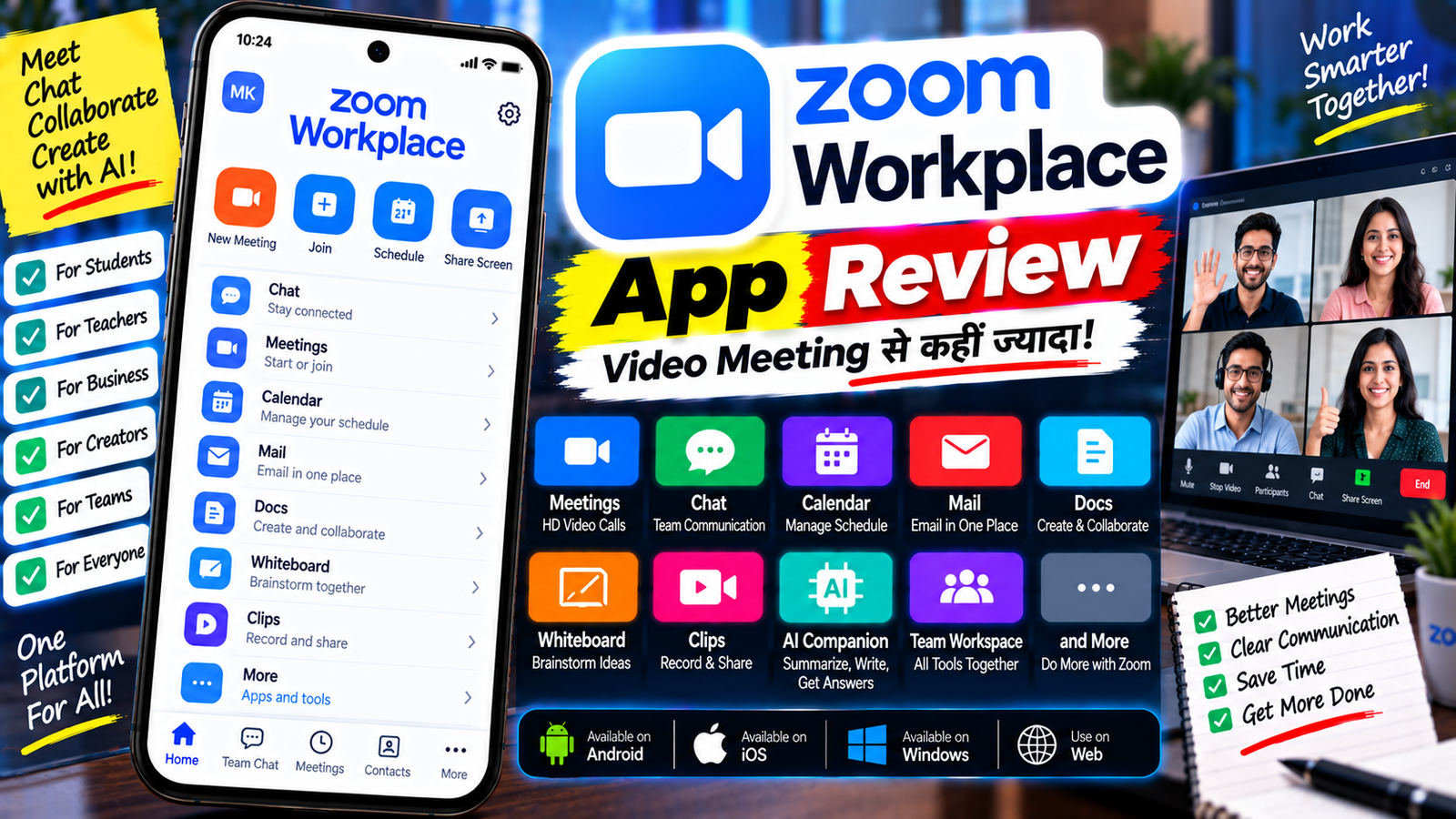
आज के समय में Online Meeting, Video Call, Team Chat और Remote Work के लिए कई सारे ऐप मौजूद हैं, लेकिन Zoom का नाम सबसे ज्यादा इस्तेमाल होने वाले platforms में आता है। पहले Zoom को मुख्य रूप से Video Conferencing App के रूप में जाना जाता था, लेकिन अब यह सिर्फ Video Meeting तक सीमित नहीं है।
Zoom का मौजूदा platform Zoom Workplace कहलाता है, जिसमें Meetings के साथ Chat, Mail, Calendar, Docs, Whiteboard, Clips, Tasks, Notes और AI features भी शामिल हैं। Mobile पर Zoom Workplace App Android और iOS दोनों के लिए उपलब्ध है। हालांकि, कौन-सा feature आपके account में मिलेगा, यह आपके plan, license और add-ons पर निर्भर कर सकता है।
इसलिए अगर आप Zoom को सिर्फ Meeting करने के लिए इस्तेमाल करते हैं, तो इस App Review में आपको इसके कई ऐसे features के बारे में पता चलेगा जिनका शायद आपने अभी तक इस्तेमाल नहीं किया होगा।
Zoom Workplace क्या है?
Zoom Workplace Zoom का all-in-one collaboration platform है। इसमें Video Meetings के अलावा Chat, Mail, Calendar, Docs, Whiteboard, Clips, Tasks और Notes जैसे tools मिलते हैं।
Zoom ने अपने AI features को भी Workplace experience में शामिल किया है। पहले जिन features को AI Companion के नाम से जाना जाता था, उनमें Meeting Summary, Transcription, Smart Compose और Call Summary जैसी सुविधाएं अब Zoom Workplace में built-in AI capabilities के रूप में उपलब्ध हैं।
इसका मतलब है कि Zoom अब केवल “Video Calling App” नहीं है, बल्कि एक ऐसा platform है जहां Meeting से लेकर Meeting के बाद का काम भी किया जा सकता है।
Zoom App कहां इस्तेमाल कर सकते हैं?
Zoom Workplace को Android, iPhone, Windows, macOS, Linux और Web पर इस्तेमाल किया जा सकता है। Mobile App में आप सीधे Sign in कर सकते हैं, नया account बना सकते हैं या बिना account के किसी Meeting में Join कर सकते हैं।
अगर आपके पास Meeting ID और Passcode है, तो कई situations में केवल Join Meeting विकल्प से भी Meeting में शामिल हुआ जा सकता है।
Video Meeting
Zoom का सबसे प्रमुख feature आज भी Video Meeting है।
आप Zoom से:
- Video Meeting शुरू कर सकते हैं
- Meeting Schedule कर सकते हैं
- Meeting ID से Join कर सकते हैं
- Camera और Microphone control कर सकते हैं
- Screen Share कर सकते हैं
- Meeting Chat कर सकते हैं
- Participants को Manage कर सकते हैं
- Recording जैसी सुविधाओं का इस्तेमाल कर सकते हैं
- अलग-अलग devices के बीच Meeting transfer कर सकते हैं
Zoom Meetings में screen sharing, annotation और collaboration tools भी उपलब्ध हैं। Zoom का उद्देश्य Meeting से पहले, Meeting के दौरान और Meeting के बाद के workflow को एक ही platform में जोड़ना है।
Screen Share
Online classes, presentations, tutorials और office meetings के लिए Screen Sharing काफी उपयोगी feature है।
आप अपने computer या mobile की screen दूसरे participants के साथ share कर सकते हैं। इससे आप:
- Presentation दिखा सकते हैं
- App या software का demo दे सकते हैं
- Documents समझा सकते हैं
- Online class ले सकते हैं
- किसी technical problem को दिखा सकते हैं
Mobile App में भी screen sharing उपलब्ध है, हालांकि कुछ capabilities device और account configuration के अनुसार अलग हो सकती हैं।
Zoom Chat
Zoom Workplace में Team Chat भी शामिल है।
इसका इस्तेमाल Meeting के बाहर team members के साथ messages, files और दूसरे resources share करने के लिए किया जा सकता है।
Zoom के अनुसार Chat को Meetings के साथ जोड़ा गया है, जिससे Meeting से पहले, दौरान और बाद में बातचीत और shared content को एक connected workflow में रखा जा सकता है।
अगर किसी Meeting के दौरान कोई महत्वपूर्ण बात हुई है, तो उससे जुड़ी Chat और shared information को बाद में भी access किया जा सकता है।
AI Features
Zoom Workplace का एक बड़ा हिस्सा अब AI है।
Zoom के AI features अलग-अलग products जैसे Meetings, Chat, Mail, Whiteboard और Phone में इस्तेमाल किए जा सकते हैं।
AI की मदद से आप Meeting Summary, Chat Summary, Email Drafting, Meeting Questions और कई दूसरे काम कर सकते हैं।
Meeting Summary
अगर आप पूरी Meeting के दौरान manually notes नहीं बनाना चाहते, तो eligible plans में AI Meeting Summary आपकी Meeting की मुख्य बातें और next steps को summarize कर सकता है।
इससे Meeting खत्म होने के बाद पूरी recording या conversation दोबारा देखने की जरूरत कम हो सकती है।
Meeting में AI से सवाल
Meeting चल रही हो और आपसे कोई महत्वपूर्ण हिस्सा miss हो जाए, तो उपलब्ध AI capabilities की मदद से Meeting के context के आधार पर सवाल पूछे जा सकते हैं।
यह feature उन लोगों के लिए उपयोगी हो सकता है जो लंबी Meeting में हर बात manually note नहीं करना चाहते।
Chat Summary
अगर किसी Team Chat में बहुत सारे messages हो चुके हैं, तो AI Chat Summary लंबे conversation को जल्दी समझने में मदद कर सकता है।
AI से Message लिखना
Zoom Chat में AI की मदद से message draft किया जा सकता है। आप tone और length जैसी चीजों को भी adjust कर सकते हैं।
AI से Email लिखना
Zoom Mail में भी AI email compose करने में सहायता कर सकता है। Conversation के context के आधार पर response तैयार किया जा सकता है।
AI Chat Panel
Zoom Workplace में AI Chat Panel भी दिया गया है।
इसमें आप AI से questions पूछ सकते हैं और उपलब्ध context के आधार पर जवाब प्राप्त कर सकते हैं। कुछ configurations में Zoom Meetings, Chat और Docs के अलावा Google Drive, Microsoft 365, Web Content और uploaded files जैसे data sources भी इस्तेमाल किए जा सकते हैं।
हालांकि third-party data sources इस्तेमाल करने के लिए account में संबंधित configuration और permissions जरूरी हो सकती हैं।
Zoom Whiteboard
Zoom Whiteboard एक digital collaborative whiteboard है।
इसमें आप ideas लिख सकते हैं, diagrams बना सकते हैं, mind maps और दूसरे visual elements तैयार कर सकते हैं।
AI की मदद से Whiteboard में text, tables, sticky notes, flowcharts और mind maps जैसे content generate किए जा सकते हैं। AI से Whiteboard content को organize और summarize करने की capabilities भी उपलब्ध हैं।
Online brainstorming और team planning के लिए यह feature काफी काम आ सकता है।
Zoom Docs
Zoom Workplace में Docs भी शामिल हैं। इसका उद्देश्य Meeting और collaboration से जुड़े information को documents और organized work में बदलना है।
उदाहरण के लिए Meeting के बाद मिले notes और action items को आगे document या project-related content में इस्तेमाल किया जा सकता है।
Paid plans में Docs की capabilities Basic plan की तुलना में ज्यादा विस्तृत हो सकती हैं।
Calendar
Zoom Workplace में Calendar भी शामिल है।
इससे आप Meetings और schedule को एक जगह manage कर सकते हैं। Mobile App का Home section आपके daily schedule और upcoming meetings को दिखा सकता है।
Zoom Calendar को Google और Microsoft calendar services के साथ भी integrate किया जा सकता है, हालांकि उपलब्ध functionality account और configuration पर निर्भर करती है।
Zoom Mail
Zoom Workplace में Mail feature भी उपलब्ध है।
इसका इस्तेमाल email communication के लिए किया जा सकता है और AI की मदद से email draft करने जैसी सुविधाएं भी उपलब्ध हैं।
कुछ security features जैसे end-to-end encryption भी selected paid plans में उपलब्ध हो सकते हैं।
Zoom Clips
Zoom Clips की मदद से short video messages record, edit और share किए जा सकते हैं।
इसका इस्तेमाल हर छोटी बात के लिए live Meeting करने की जरूरत को कम करने के लिए किया जा सकता है।
उदाहरण के लिए अगर आपको किसी team member को किसी software का छोटा सा tutorial देना है, तो आप एक Clip record करके भेज सकते हैं।
Basic plan में Clips की usage limits हैं, जबकि Pro में अधिक capabilities मिलती हैं।
Zoom Hub
Zoom Hub को Zoom Workplace में content management और खोज के लिए इस्तेमाल किया जा सकता है।
यह recordings, notes और documents जैसे Zoom assets को एक centralized जगह से search और manage करने में मदद करता है। Mobile App में भी Zoom Hub के लिए dedicated tab उपलब्ध कराया गया है।
Zoom Phone
Zoom Workplace में Zoom Phone भी एक महत्वपूर्ण feature है।
यह cloud-based phone service है, जिसमें calling के साथ AI-powered call summaries, next steps, voicemail prioritization और task extraction जैसी capabilities उपलब्ध हो सकती हैं।
हालांकि Zoom Phone आम personal users के लिए जरूरी नहीं है और इसका इस्तेमाल मुख्य रूप से business communication में ज्यादा होता है।
ZoomMate क्या है?
Zoom के AI ecosystem में एक नया नाम ZoomMate है।
Zoom के अनुसार पहले AI Companion के नाम से उपलब्ध कई AI capabilities अब Zoom Workplace में native रूप से integrated हैं, जबकि ZoomMate को ज्यादा agentic capabilities के लिए पेश किया गया है। यह Meeting context और connected information के आधार पर tasks और workflows को आगे बढ़ाने के लिए बनाया गया है।
ZoomMate के लिए अलग licensing और AI Credits जैसी requirements हो सकती हैं, इसलिए हर user को समान capabilities मिलना जरूरी नहीं है।
Mobile App कैसे इस्तेमाल करें?
Zoom Workplace App को इस्तेमाल करना काफी आसान है।
Step 1: App Install करें
Android या iPhone में Zoom Workplace App install करें।
Step 2: Account से Sign In करें
अगर आपके पास Zoom account है तो Sign In करें।
अगर account नहीं है तो Free Basic account बनाया जा सकता है।
Step 3: Meeting Join करें
अगर किसी ने आपको Meeting ID और Passcode दिया है, तो Join Meeting विकल्प चुनें और details enter करें।
Step 4: Meeting Start करें
अपनी Meeting शुरू करने के लिए Meet विकल्प का इस्तेमाल कर सकते हैं।
Step 5: AI और दूसरे Tools देखें
आपके account में उपलब्ध होने के अनुसार AI Chat, Chat, Calendar, Whiteboard, Docs और दूसरे tools को access किया जा सकता है।
ध्यान रखें कि सभी features हर account में दिखाई दें, यह जरूरी नहीं है। License, add-ons, permissions और organization settings के कारण अलग-अलग users को अलग capabilities मिल सकती हैं।
Free Plan में क्या मिलता है?
Zoom Workplace का Basic plan Free है।
Current plan information के अनुसार Basic में:
- 100 participants तक Meeting
- 40 मिनट तक Meeting
- Zoom Chat
- Calendar
- Basic Canvas
- Basic Whiteboard
- Clips
- Tasks
- Notes
जैसे features शामिल हैं।
कुछ AI capabilities भी Basic users के लिए limited form में उपलब्ध हो सकती हैं। Zoom की current information में Basic plan के लिए limited AI usage का उल्लेख है।
सबसे महत्वपूर्ण limitation यह है कि Basic user द्वारा host की गई अधिकांश Meetings 40 मिनट के बाद समाप्त हो जाती हैं।
Paid Plan में क्या मिलता है?
Workplace Pro में Basic के मुकाबले ज्यादा features और extended Meeting capabilities मिलती हैं।
Current Zoom pricing information के अनुसार Pro में Meeting duration 30 घंटे तक हो सकती है और AI note-taking जैसी additional AI capabilities भी शामिल हैं। Pro में cloud storage, unlimited Docs और unlimited Clips जैसी सुविधाएं भी उपलब्ध हैं।
Business और Enterprise plans में इससे ज्यादा participants, administration, security और organization-focused features मिलते हैं।
Pricing समय के साथ बदल सकती है, इसलिए खरीदने से पहले Zoom की official pricing जरूर check करनी चाहिए।
Privacy और Security
Zoom के AI features इस्तेमाल करते समय privacy को समझना जरूरी है।
Zoom के अनुसार AI features अलग-अलग contexts के आधार पर user inputs, Zoom content, connected third-party data sources, web content और uploaded local files जैसे data का इस्तेमाल कर सकते हैं।
इसलिए AI में कोई confidential document या sensitive information upload करने से पहले अपने account की settings और organization policy को समझना जरूरी है।
Zoom यह भी स्पष्ट करता है कि AI-generated responses गलत, inaccurate या misleading हो सकते हैं। इसलिए AI द्वारा बनाए गए summaries, documents या दूसरे outputs को इस्तेमाल करने से पहले verify करना चाहिए।
Zoom Workplace के फायदे
Zoom Workplace के कई फायदे हैं:
- Video Meeting के लिए लोकप्रिय platform
- Android और iOS App उपलब्ध
- Desktop और Web support
- Screen Sharing
- Team Chat
- Calendar
- Docs
- Whiteboard
- Clips
- AI-powered features
- Meeting Summary
- Chat Summary
- AI-assisted writing
- Meeting में AI questions
- Collaboration tools
- Free Basic plan
सबसे खास बात यह है कि Zoom ने Meeting को अकेले feature के रूप में रखने के बजाय पूरे work collaboration ecosystem में बदल दिया है।
Zoom Workplace की सीमाएं
कुछ limitations भी हैं।
सबसे पहली limitation Free Basic plan की 40-minute Meeting limit है।
दूसरी बात यह है कि Zoom के सभी AI और productivity features हर user को समान रूप से उपलब्ध नहीं होते। कुछ features के लिए paid plan, add-on, license या admin permission की जरूरत हो सकती है।
तीसरी बात यह है कि AI-generated information को बिना verify किए इस्तेमाल नहीं करना चाहिए।
Zoom किसके लिए उपयोगी है?
Zoom Workplace इन users के लिए खास तौर पर उपयोगी हो सकता है:
Students: Online classes और presentations के लिए।
Teachers: Online teaching और screen sharing के लिए।
YouTubers: Collaboration, interviews और remote recording workflows के लिए।
Freelancers: Clients के साथ Meetings और communication के लिए।
Small Teams: Meetings, Chat और Docs के लिए।
Businesses: Meetings, Phone, Mail, Calendar, AI और collaboration के लिए।
Remote Workers: अलग-अलग locations से team के साथ काम करने के लिए।
Zoom Workplace और Google Meet में अंतर
Google Meet Google Workspace ecosystem के साथ closely integrated है, जबकि Zoom Workplace Meeting के साथ Chat, Whiteboard, Docs, Mail, Calendar, Clips और दूसरे collaboration tools को एक ही platform में जोड़ता है।
अगर आपका काम पहले से Google Workspace पर है, तो Google Meet naturally fit हो सकता है। वहीं Zoom Workplace उन users के लिए एक broader collaboration platform है जिन्हें Meeting के साथ additional workplace tools भी चाहिए।
हालांकि दोनों platforms के features और plans लगातार बदलते रहते हैं, इसलिए specific feature comparison करते समय current official plans देखना बेहतर है।
FAQs
क्या Zoom Workplace Free है?
हां। Zoom Workplace Basic नाम का Free plan उपलब्ध है। इसमें core Meeting और collaboration features मिलते हैं।
Free Zoom Meeting कितनी देर चलती है?
Basic/free host की अधिकांश Meetings की maximum duration 40 मिनट है।
क्या Zoom Mobile में चलता है?
हां। Zoom Workplace mobile app Android और iOS दोनों पर उपलब्ध है।
क्या Zoom में AI है?
हां। Zoom Workplace में कई AI capabilities integrated हैं, जैसे Meeting Summary, Chat Summary, AI Chat और AI-assisted content creation। उपलब्ध features plan और license पर निर्भर करते हैं।
क्या Zoom में Screen Share कर सकते हैं?
हां। Zoom Meetings में Screen Sharing उपलब्ध है और इसका इस्तेमाल presentations, tutorials और demonstrations के लिए किया जा सकता है।
क्या बिना Zoom account के Meeting Join कर सकते हैं?
कई situations में हां। Mobile App में Join Meeting विकल्प से Meeting ID और Passcode के जरिए Meeting join की जा सकती है।
क्या Zoom Workplace सिर्फ Office के लिए है?
नहीं। Students, teachers, freelancers, creators और personal users भी इसके Meeting और collaboration features इस्तेमाल कर सकते हैं। Free Basic plan भी उपलब्ध है।
निष्कर्ष
Zoom Workplace अब सिर्फ Video Calling या Online Meeting App नहीं रह गया है। इसमें Meetings के साथ Chat, Calendar, Mail, Docs, Whiteboard, Clips, Tasks, Notes और AI जैसे कई tools एक ही ecosystem में मिलते हैं।
Free Basic plan उन users के लिए पर्याप्त हो सकता है जिन्हें सामान्य Online Meetings और basic collaboration की जरूरत है, जबकि लंबे Meetings और ज्यादा AI/productivity features के लिए paid plans की आवश्यकता पड़ सकती है।
अगर आप Zoom को सिर्फ Video Call के लिए इस्तेमाल करते हैं, तो इसके AI, Chat, Whiteboard, Docs और दूसरे productivity features को भी जरूर explore करना चाहिए। खासकर AI-based Meeting Summary और Chat Summary जैसे features लंबे conversations को जल्दी समझने में मदद कर सकते हैं।
कुल मिलाकर, Zoom Workplace ने traditional Video Meeting experience को एक ज्यादा व्यापक communication और collaboration platform में बदल दिया है।